

Integrate with HubSpot using Prisma
Sequin lets you sync your HubSpot data to your database in real-time. You can then use ORMs, like Prisma, to rapidly build your HubSpot integration. In this playbook, you’ll learn how to set up HubSpot to work with Prisma using Sequin. You’ll then write your first queries using the Prisma client and explore the development lifecycle as you run migrations and scale your integration.
Starting with an existing project
You’re likely already using Prisma as your ORM. So this playbook starts from an existing Prisma project and shows you how to add HubSpot data to your stack. We assume you’ve already followed Prisma’s quickstart to create your TypeScript project, install Prisma, connect your database, introspect your schema, and query with the Prisma Client. Specifically, this playbook builds on top of an existing Prisma project connected to a PostgreSQL database with one schema calledpublic containing two tables: users and orgs. Each user is a part of an org — represented in the database with a foreign key relationship:
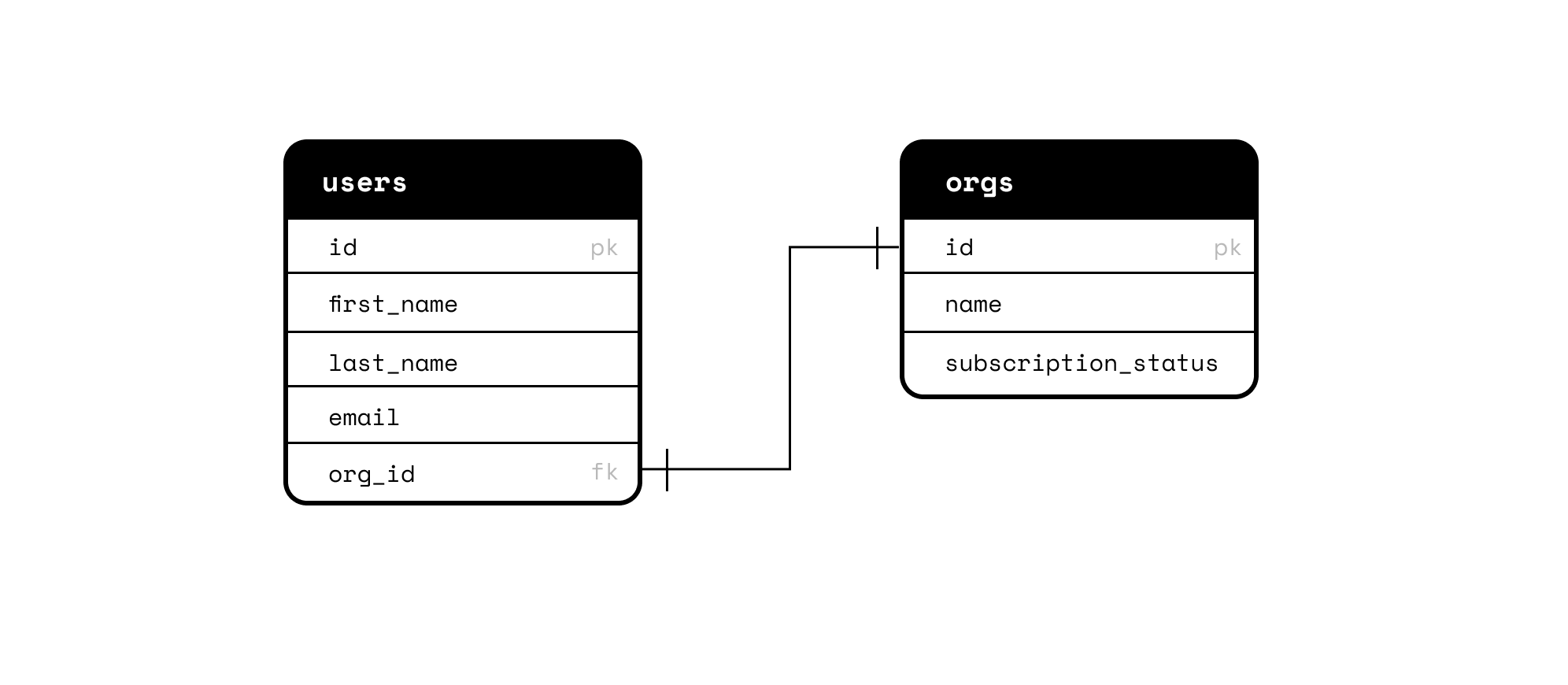
schema.prisma file:
users and orgs has been defined with a @relation scalar.
From the foundation of this existing Prisma project, you’ll now add your HubSpot schema to Prisma using Sequin.
Setup your HubSpot sync
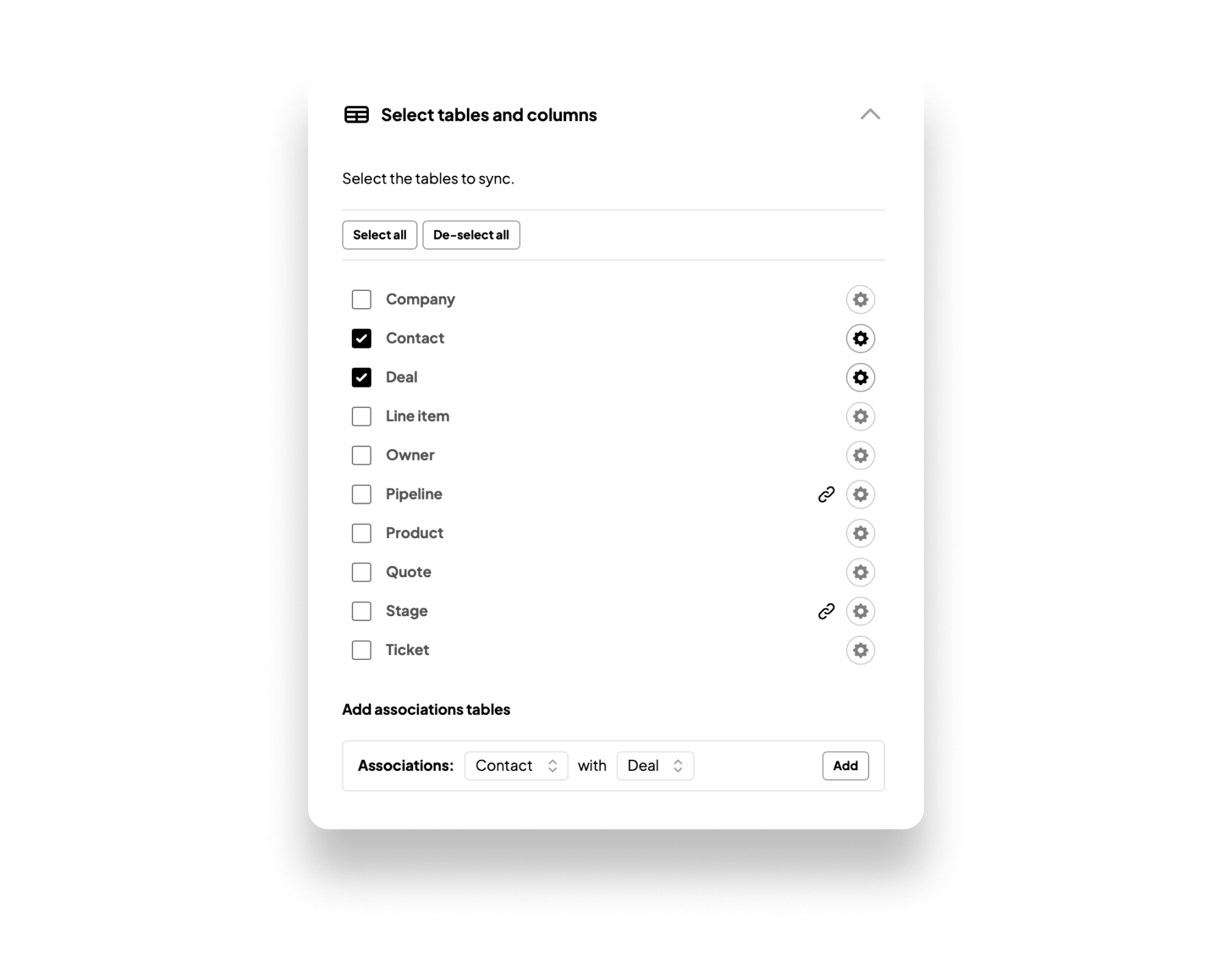
To build a sync between HubSpot and your database, Sequin will guide you through the process of authenticating with HubSpot, selecting the data you want to sync, and connecting to your database. Read our HubSpot setup guide for step-by-step instructions. For the purposes of this playbook, you’ll want to sync at least two HubSpot objects mapped together with anassociation. For instance, you can sync the Contact object, Deal object, and Contact with Deal associations:
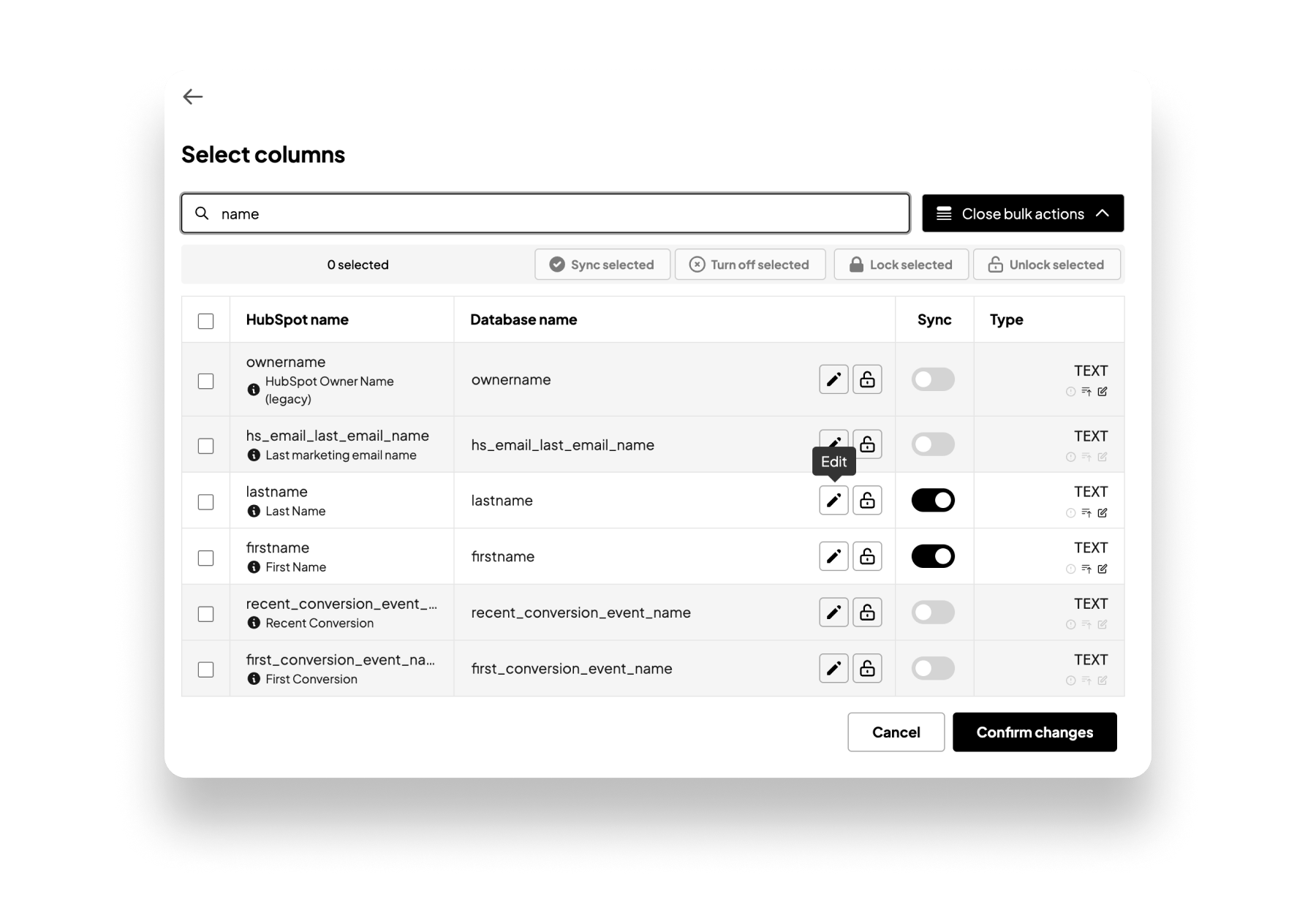
Contact object. For reference, these are the Contact properties used in the remainder of this playbook:
industryassociatedcompanyidnumemployeeswebsitecompanyjobtitlelastnamefirstnameuser_id
As a helpful example, we include a custom property called
user_id, which maps each HubSpot contact to a user. We’ll explore this relationship more later in the playbook.Deals object. Here are the Deal properties used in this playbook:
createdateclosedatepipelinedealstageamountdealnamehs_priority
Contacts, Deals, and Contact - Deal associations in your HubSpot instance to your database.
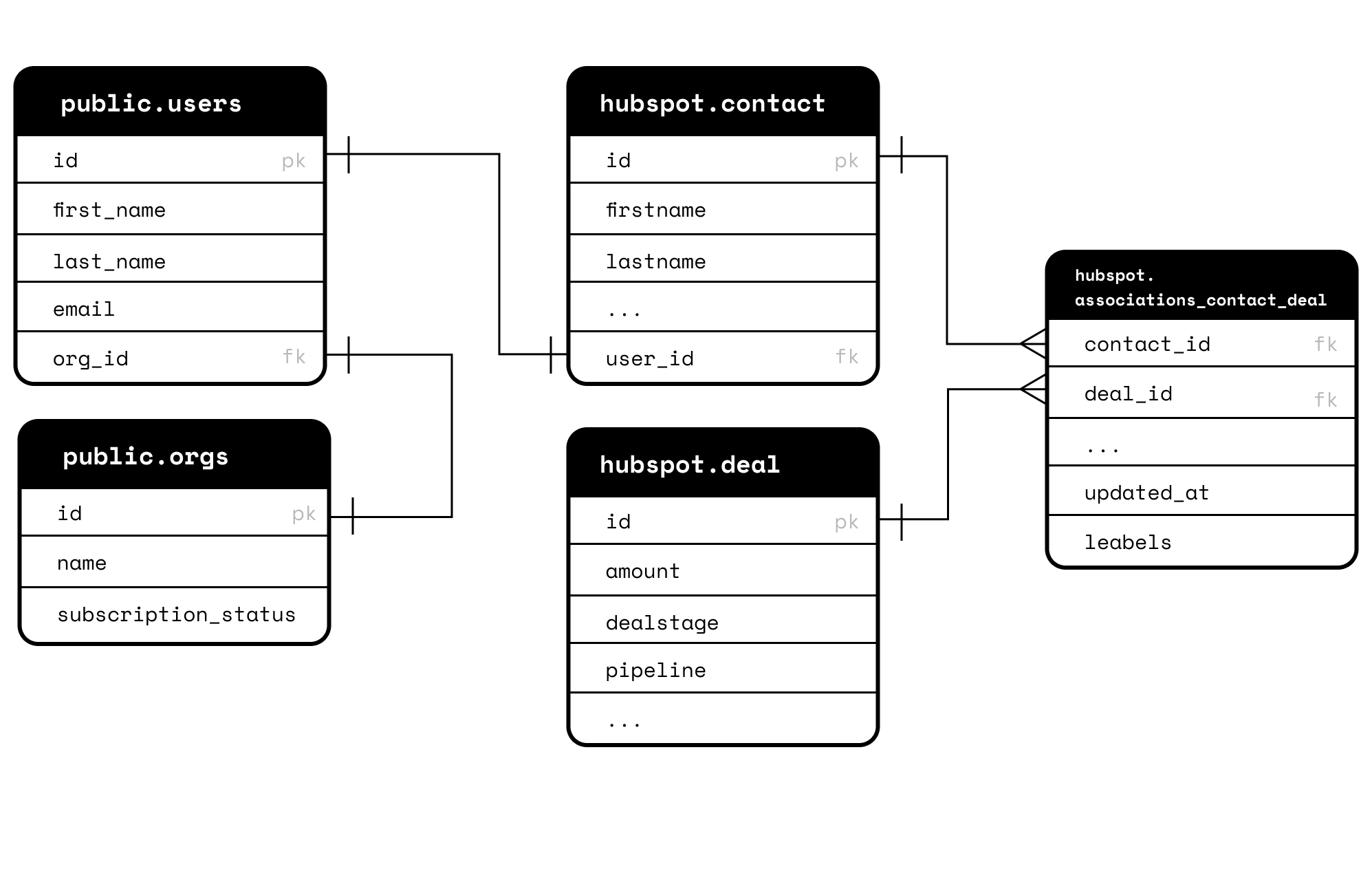
Within a minute, you’ll see the new hubspot schema and tables in your database:
Add HubSpot to your Prisma Schema
Next, you’ll update yourprisma.schema file and then re-generate the Prisma Client to work with the HubSpot data in your database.
Before you do, it’s worth building a mental model of this process.
Your database now contains two schemas:
- A
publicschema that you own and control. You’re probably used to using Prisma’s Migrate tools to make changes to this schema. In Prisma, these are called “model/entity-first migrations.” (Some Prisma users prefer tocreatenew tables andupdatecolumns in the database via SQL. These are called “database-first migrations.”) - A
hubspotschema that Sequin owns and controls to maintain your HubSpot sync. All migrations in this schema are done directly to the database via SQL commands that originate from Sequin. So, these are database-first migrations that Sequin runs. If you add or drop columns in this schema using Prisma, you’ll break the sync. Hence, all migrations in this schema are performed in the Sequin console. After Sequin applies the migrations to your database, you’ll add the changes to Prisma.
hubpost schema, you’ll always follow a database-first migration pattern in Prisma. This means you’ll pull the schema into Prisma models as opposed to pushing the schema from Prisma models into your database. Here is how.
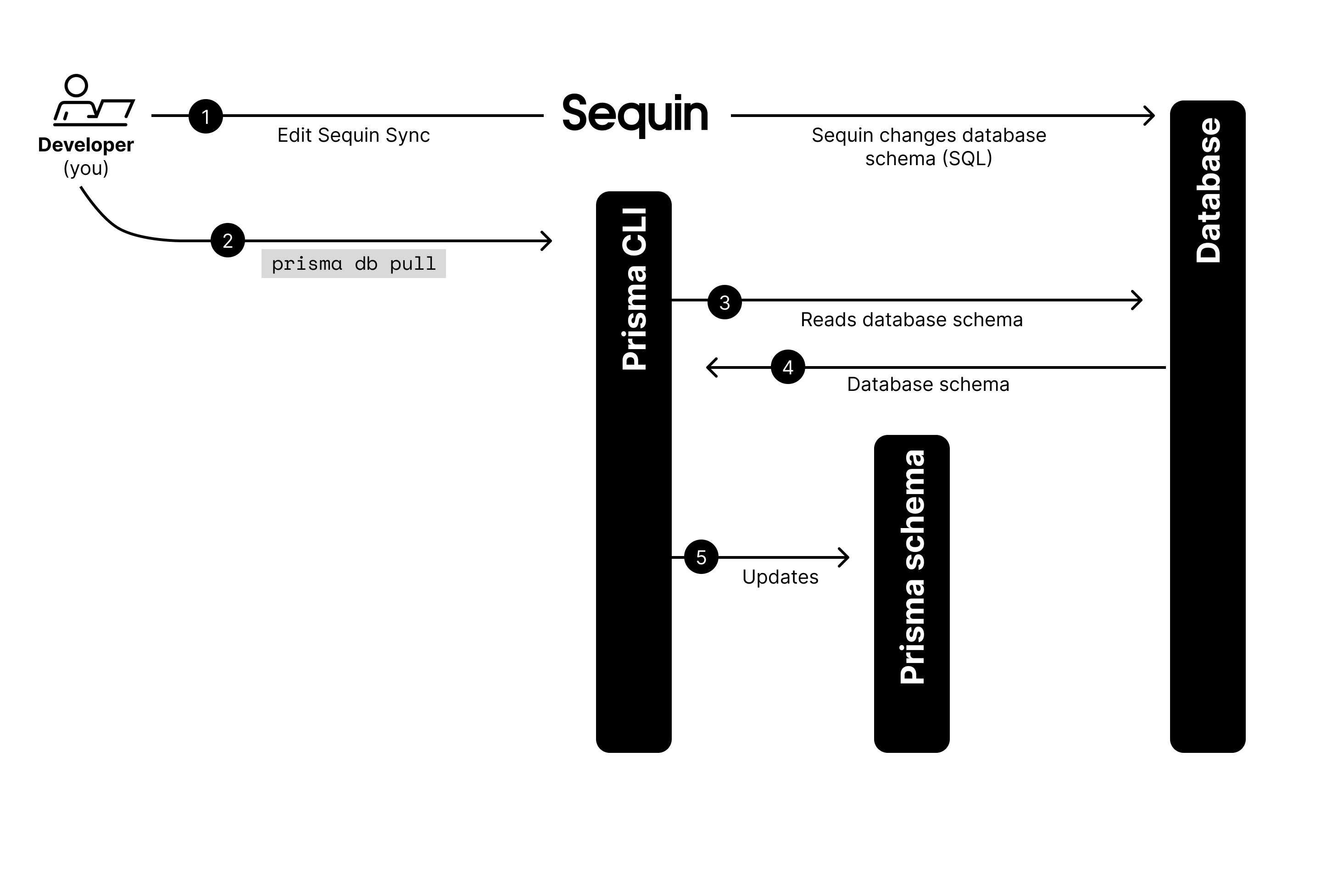
Turn on multiple schema support
Your database now contains two schemas. To configure Prisma to work with more than one schema, you need to turn on multi schema support. To do so, update yourschema.prisma file as follows:
- Add
previewFeatures = ["multiSchema"]in thegeneratorblock. This turns on multi schema support. - List your schemas in the
datasourceblock. In this case:schemas = ["public", "hubspot"] - Designate which schema each of your Prisma models belongs to with a
@@schema('public')attribute
Introspect your database
The Prisma CLI provides introspection tools to automatically update yourschema.prisma models to reflect the schema in your database.
To do so, ensure you have the Prisma CLI installed, navigate to the root directory of your project, and run the following command:
schema.prisma file.
After introspecting your database, your schema.prisma file will be updated to include your hubspot schema and the underlying contact, deal, and associations_contact_deal models:
Define relationships
Out of the box, the schema generated viaprisma db pull is almost entirely workable. But because Sequin doesn’t enforce foreign key constraints, Prisma can’t detect the relationships that exist across your contact and deal tables via the associations_contact_deal relation table. You’ll add these relationships to your schema.prisma file.
To define a many-to-many relationship using a relation table, you need to tell Prisma that the deal_id and contact_id fields in the associations_contact_deal model relate to the id field on the deal and contact models respectively. You’ll do this by adding the two relation scalars:
deal and contact models, you need to define the other side of this many-to-many relationship by pointing a new field back to the associations_contact_deal model:
user_id field in the contact model with the id field on the users model. This will make querying across your internal data model and HubSpot data possible. To do so, add one more relation scalar to your contact model:
Generate your Prisma Client
All the relationships in your data model are now defined in yourschema.prisma file. The last step before writing your first query is to re-generate your Prisma client:
Query HubSpot using the Prisma Client
Prisma gives you a modern, intuitive API for querying your HubSpot data. For instance, you can return all your HubSpot deals in one simple query:index.js
index.js
deals associated to a specific user in your public schema:
schema.prisma file to return the deals related to eric@sequin.io. In one Prisma query, you do the work of a SQL query paired with three nested calls to the HubSpot API.
Migrations
Inevitably, the data you need from HubSpot will change, and you’ll need to migrate your Prisma schema. While a more comprehensive guide to migrations should be referenced to avoid downtime in your application, here are the order of operations to consider when using Sequin with Prisma. As noted above, yourhubspot schema is managed by Sequin. For simplicity, all migrations start in the Sequin Console and are applied to Prisma as database-first migrations. As a result, you will not use Prisma Migrate when making changes to the HubSpot objects and properties syncing to your database.
Here are some common scenarios:
Adding or removing a HubSpot property
Step 1: If you’re about to remove a HubSpot property, first remove it from your app and your Prisma Client. Step 2: Add/remove the property to/from your sync by editing your table and column mapping in the Sequin Console. When you click Update, Sequin will immediately migrate your database to add the new property as a new column or drop the column related to the property you removed. In the case where you added a new property, Sequin will begin the backfill process, syncing the property to your database. Step 3: If you are adding a new property, you’ll now manually add the field associated with the new column/property in the appropriate model in yourschema.prisma file. It is easier to do this by hand as opposed to introspecting your database so that you can preserve the other relationship scalars.
Step 4: Run the prisma generate command in your terminal to update the Prisma Client.
Adding or removing a HubSpot Object
Step 1: If you’re about to remove a HubSpot object, first remove it from your app and your Prisma Client. Step 2: Add/remove the object to/from your sync by editing your table and column mapping in the Sequin Console. When you click Update, Sequin will run a migration to create or drop the tables related to your change. Step 3: If you are adding a new HubSpot object to your sync, you’ll now add these new tables as models in yourschema.prisma file. You have two options:
- Manually add or remove the appropriate models.
- ⚠️ Partial Introspect Workaround ⚠️: Partially introspect your database by first saving your existing
schema.prismafile. Then follow Prisma’s guide for introspecting just a subset of your database. In this case, you’ll create a new database user that can only access the new tables added to your database by Sequin. Then, append the new models generated by your introspection to your savedprisma.schemafile. This is often a more straightforward path when adding an object to your HubSpot sync.
prisma generate command in your terminal to update the Prisma Client.
Development lifecycle
You aren’t using Prisma Migrate to track the migrations related to changes in yourhubspot schema and the underlying Sequin sync. So how does this all work across dev and staging environments?
To support development and staging environments, you’ll set up a dev HubSpot account and a dev Sequin sync. You’ll then use Sequin’s copy config setting to copy changes from the dev sync and database to your production sync and database. Here is the flow.
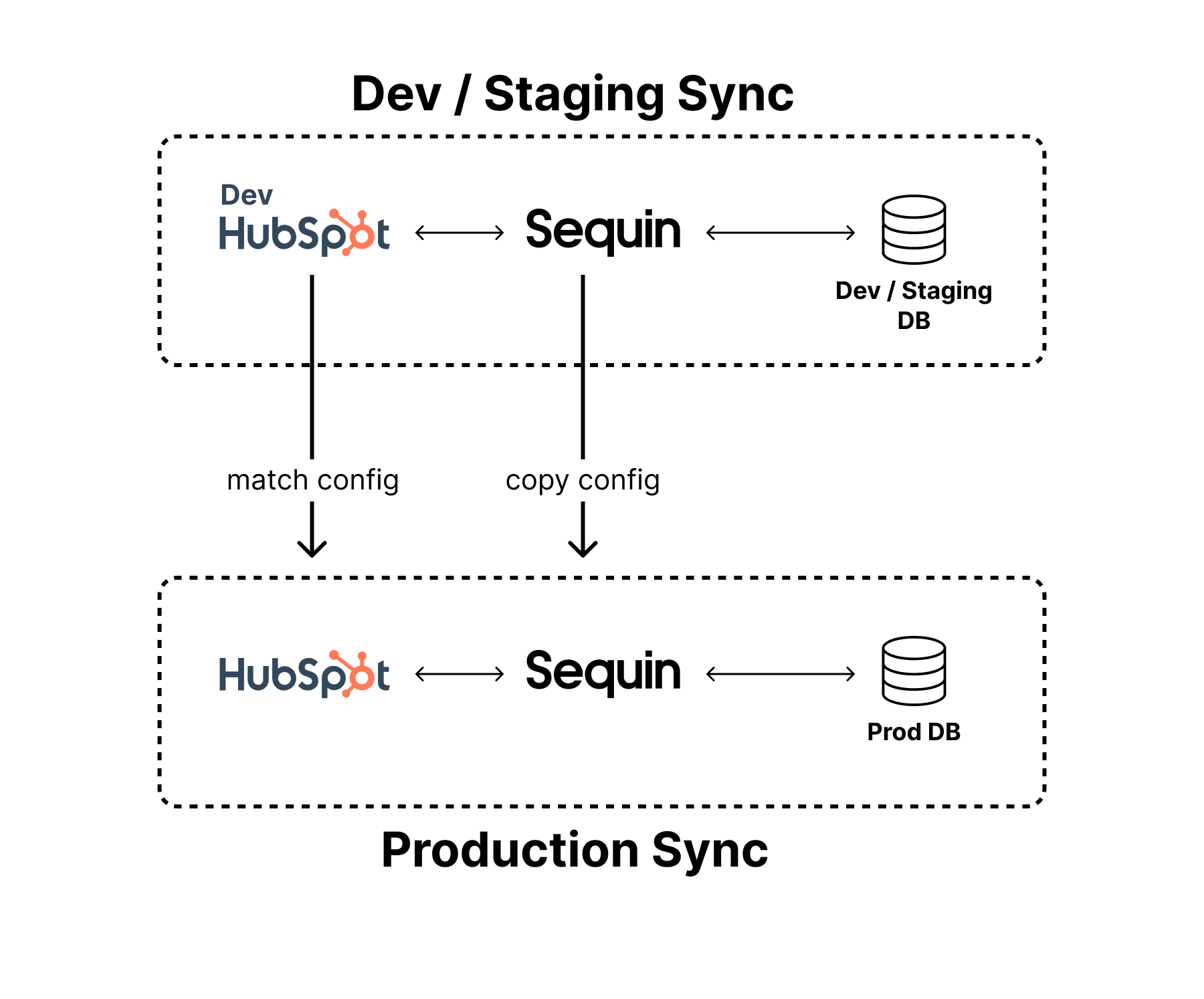
- First, make sure any new properties or settings in your dev HubSpot instance have been applied to your production instance.
- Then, click to edit your production sync in Sequin. In the Select tables and columns section, click the Copy config from… button. Select your dev sync to apply your development sync configuration to your production sync.
- Click Update.
prisma generate command to update your client.