

Build Node.js Apps that query Airtable using SQL
Sequin makes it easy to work with all your Airtable data in Node.js. In this tutorial, we’ll show you how to quickly read and write data to Airtable using the Sequin database and proxy in a Node.js script. Let’s dive in.Airtable Setup
For this tutorial, we’ll be using Airtable’s Inventory Tracking Template as an example data set: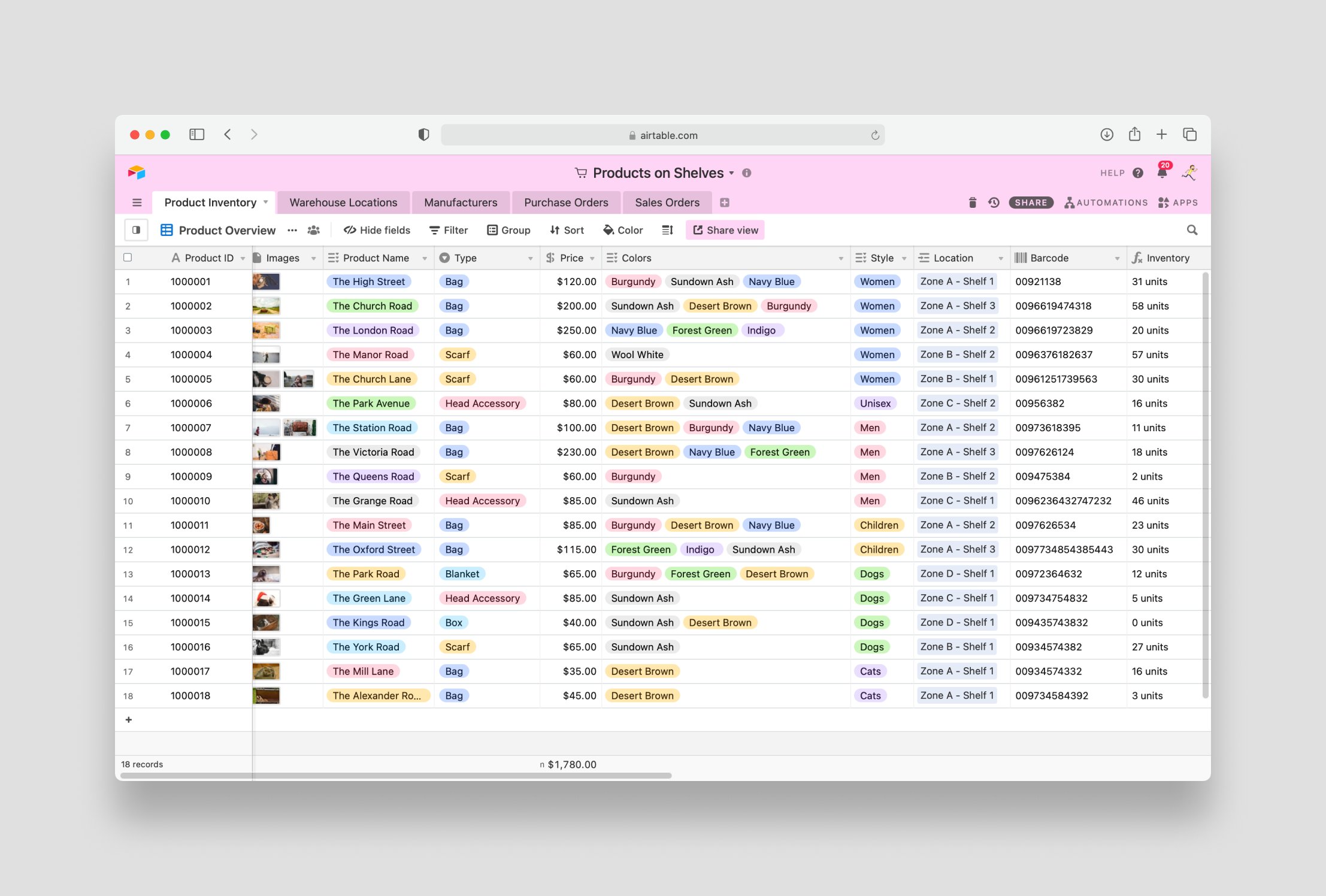
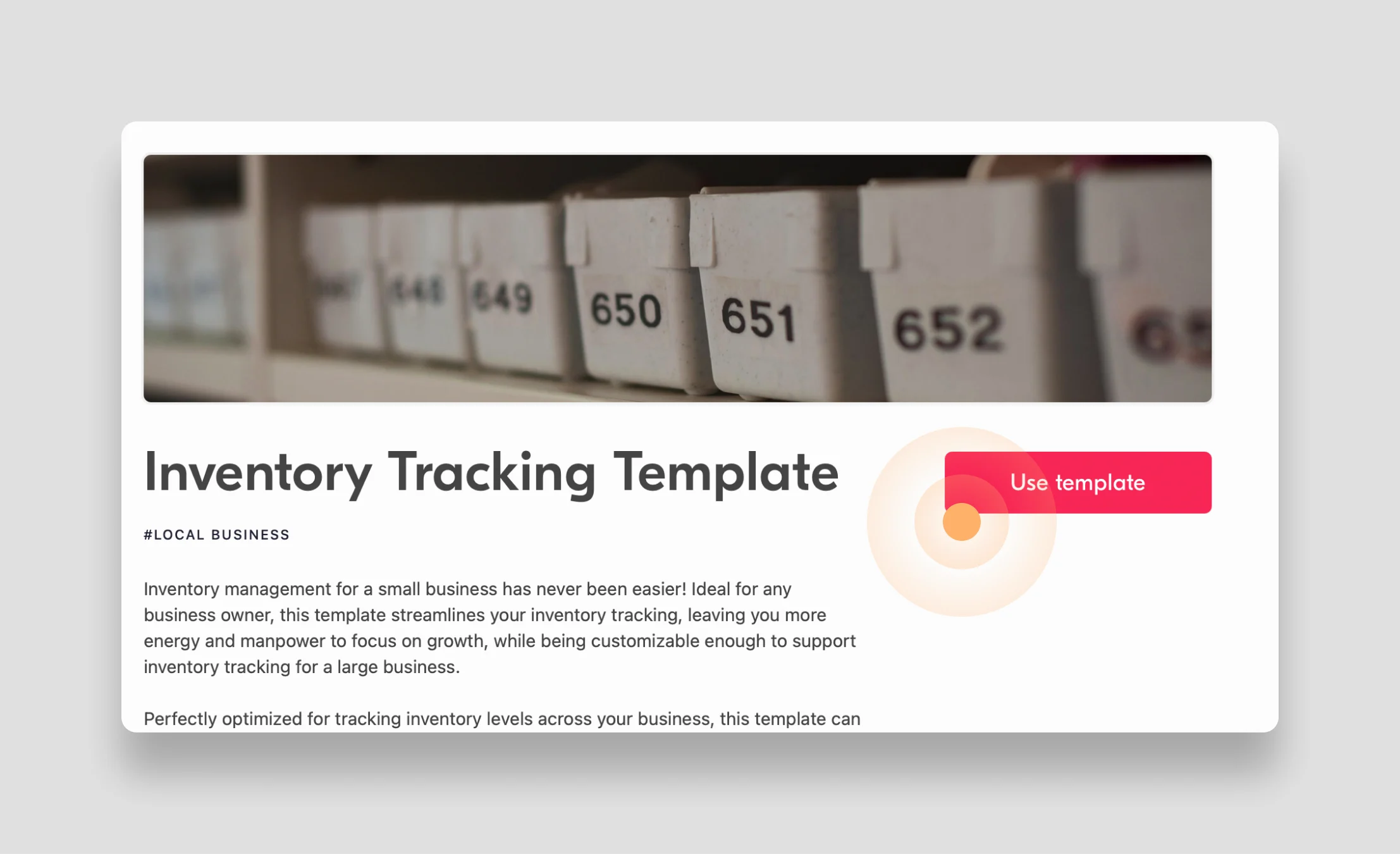
- Log in to your Airtable workspace and then open the inventory tracking template in a new tab.
- Click the Use Template button to add the inventory tracking template to your workspace.
Sequin Setup
Now, use Sequin to provision a Postgres database that contains all the data in the inventory tracker base: Step 1: Go to https://console.sequin.io/signup and create a Sequin account: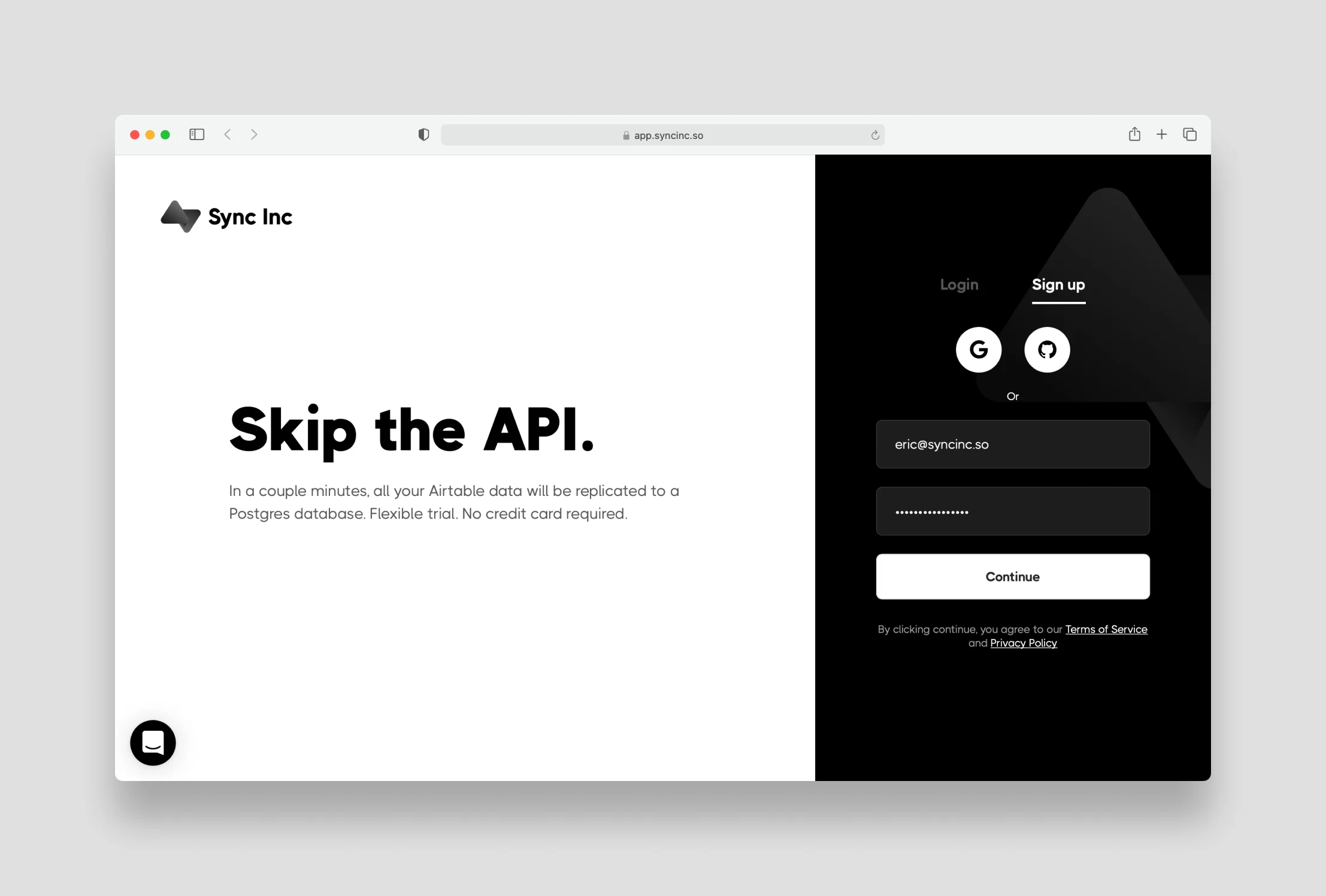
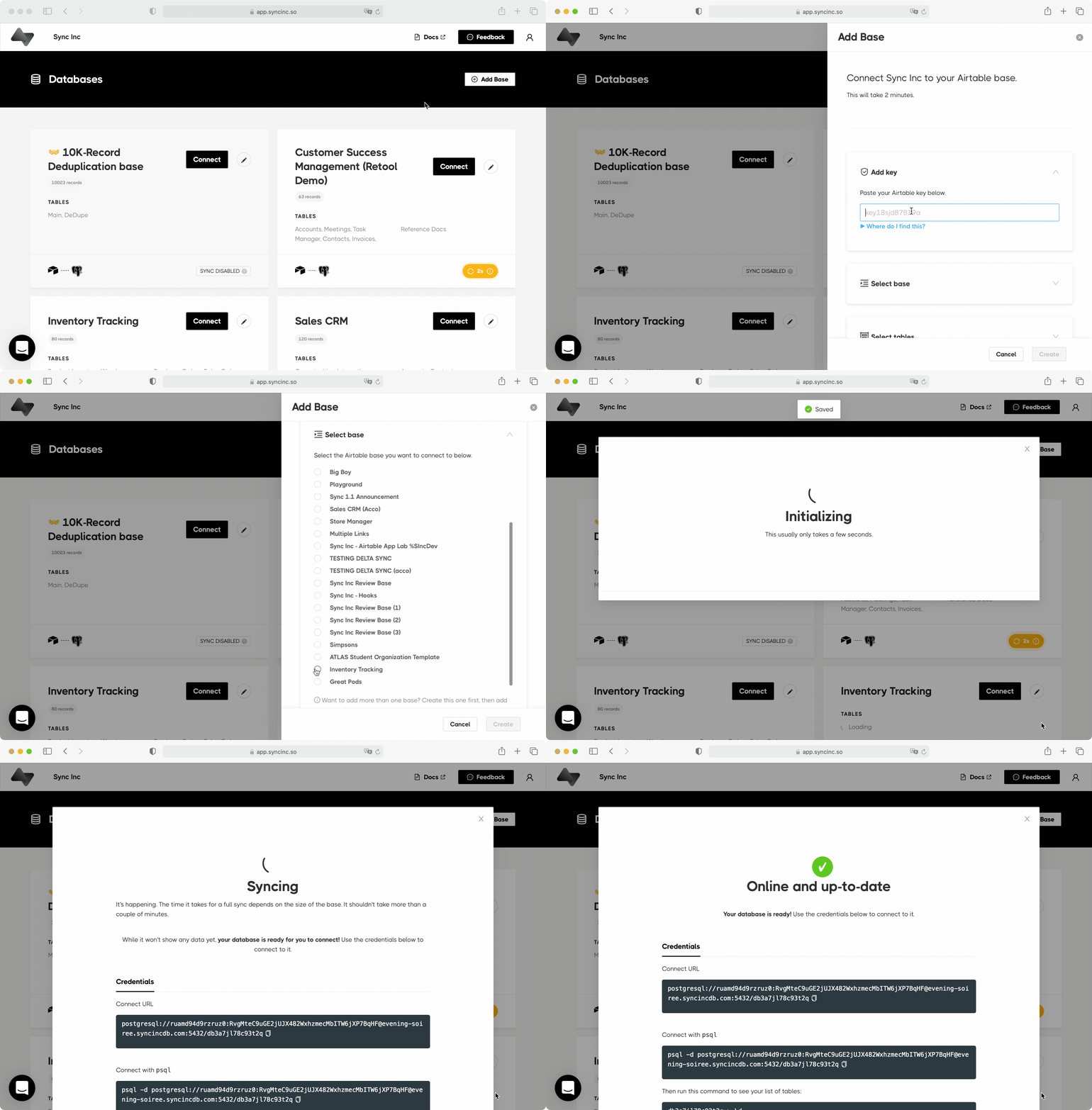
Node.js Setup
For this tutorial, we’ll be using the latest, stable release of Node.js - which at the time of writing is version 14.16.1. If you don’t already have Node installed on your machine, go to Nodejs.org and follow the instructions for your operating system.Open up your terminal and create a new directory for this project. You can call it something like
sync_inc_tutorial. Then, navigate into that directory you just created and initialize npm by running npm init -y:
package.json and a node_modules directory so you can add additional libraries. You’ll be using three libraries in this tutorial:
pg— The Node-postgres library makes it easy to connect to your Sequin Postgres database and query your data.dotenv— To keep your Sequin database password and Airtable API key out of version control, you’ll use the dotenv library to manage environment variables.node-fetch— You’ll use the node-fetch library to make HTTP requests using the Sequin proxy.
.env and index.js file to the directory to complete your setup:
Reading Data
You’ll read data from Airtable through your Sequin database. Because your Sequin database is a standard, cloud-hosted Postgres database — you’ll connect, authenticate, and query usingpg and SQL.
First, take care of some housekeeping and set up your environment variables. By using environment variables you’ll keep your database and API passwords out of version control.
Open up the .env file and define a new environment variable called PG_PASSWORD and set the value to the password for your Sequin database:
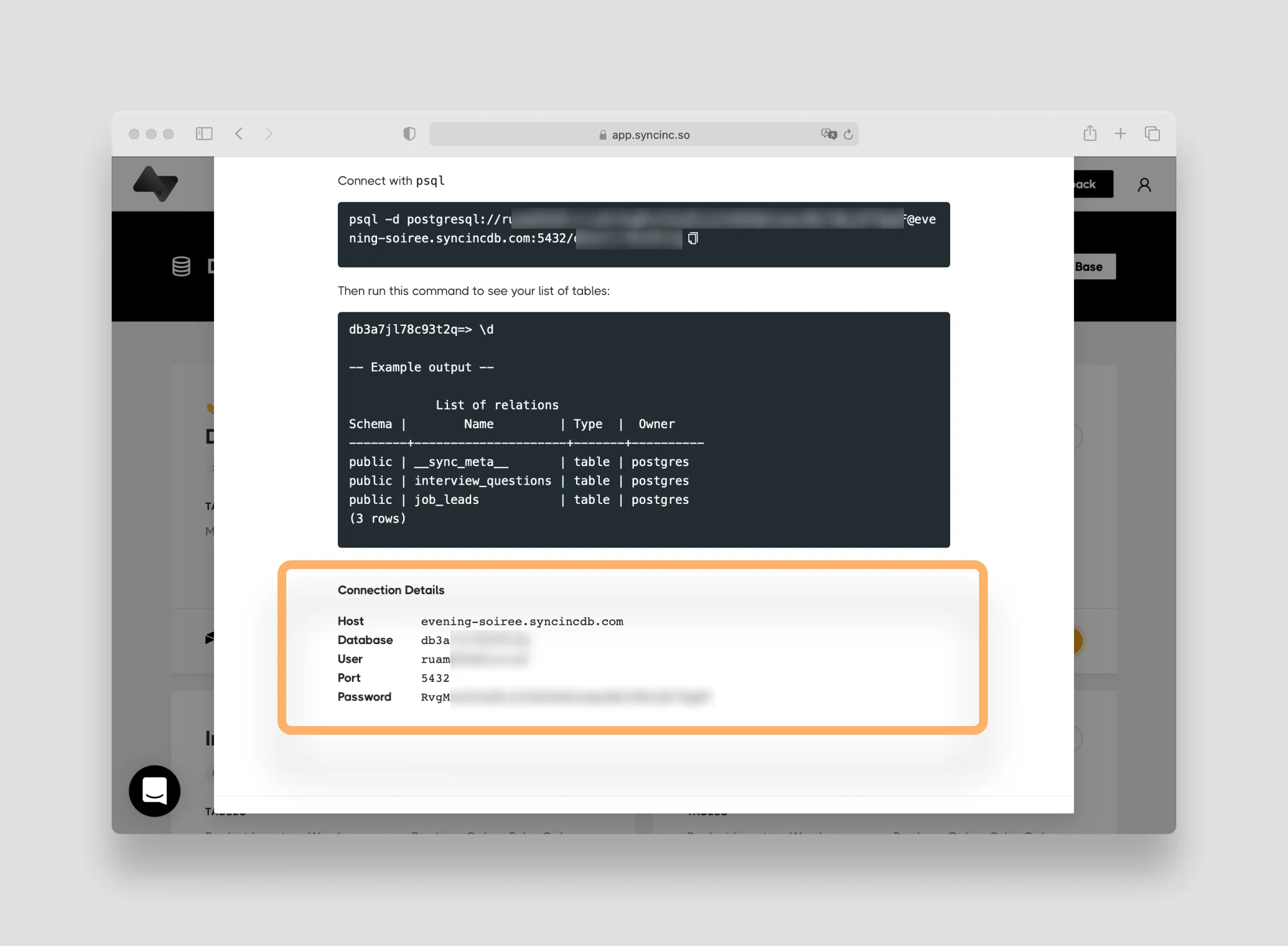
Reminder: You can retrieve the credentials for your Sequin database at any time by navigating back to the Sequin console and clicking the black Connect button on your Inventory Tracker resource. You’ll find the raw credentials you need at the bottom of the page.
Now, configure the connection to your Sequin database. Open index.js and add the following:
- First, you are requiring
dotenv, which loads thePG_PASSWORDenvironment variable. - Next, you are requiring
pgand then creating a new Postgres client that connects to your Sequin database. To do so, you are defining thehost,user,database,password(which is referencing the environment variable), andportfor your database. You’ll copy and paste these values right from the Sequin connect page for the resource you created earlier. - Finally, with
client.connect()you are connecting to the database.
Product Inventory table. Add the following function:
- First, you create an
asyncfunction since thepgclient will return a promise. - Next, you define your query as a string literal using SQL.
- Then, you execute the query using
await client.query(query)and set the results to the variableres. - Finally, you log the results of the query.
index.js and return to your terminal. Make sure you are in your sync_inc_tutorial directory and run $ node index.js. You’ll see all the records from the Product Inventory table printed in clean JSON:
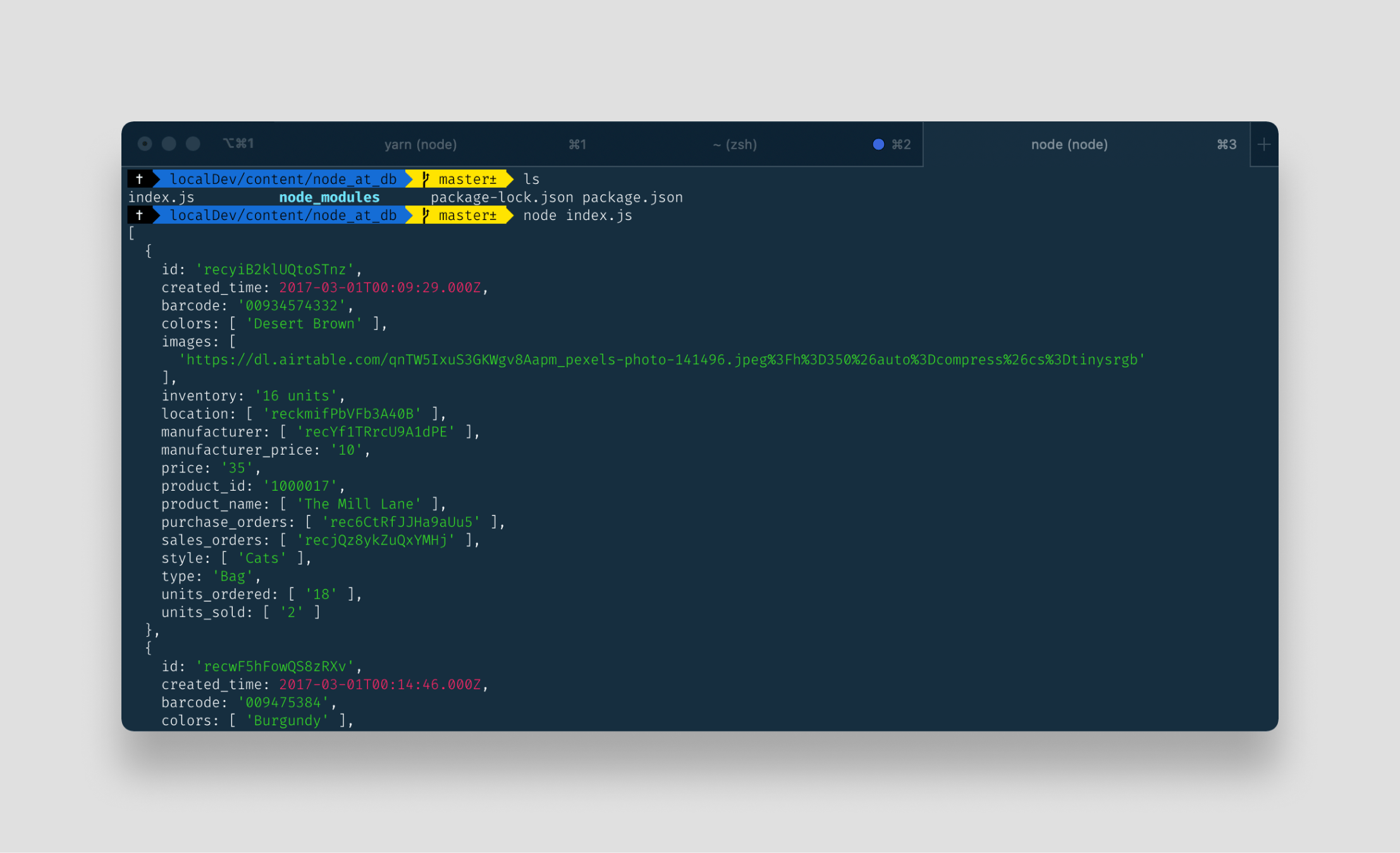
Product Inventory table in order to determine if a product’s inventory is running low. So instead of SELECT *, define the exact data you need:
- First, you’re selecting the
idof the product and giving the returned column an alias of “product_id”. - On the next two lines, you are retrieving the
manufacturer_idand the name of the product. These fields are stored as Postgres arrays in your Sequin database because in Airtable they are linked records and multi-select fields which can contain many values. So here, the[1]syntax is extracting the value from the array. - Lastly, you are calculating the available inventory right in your SQL statement by subtracting the
units_soldfrom theunits_ordered. Again, both these fields are in arrays because they are Airtable lookups (hence the[1]syntax). To run the calculation you are casting these values to integers:::integer.
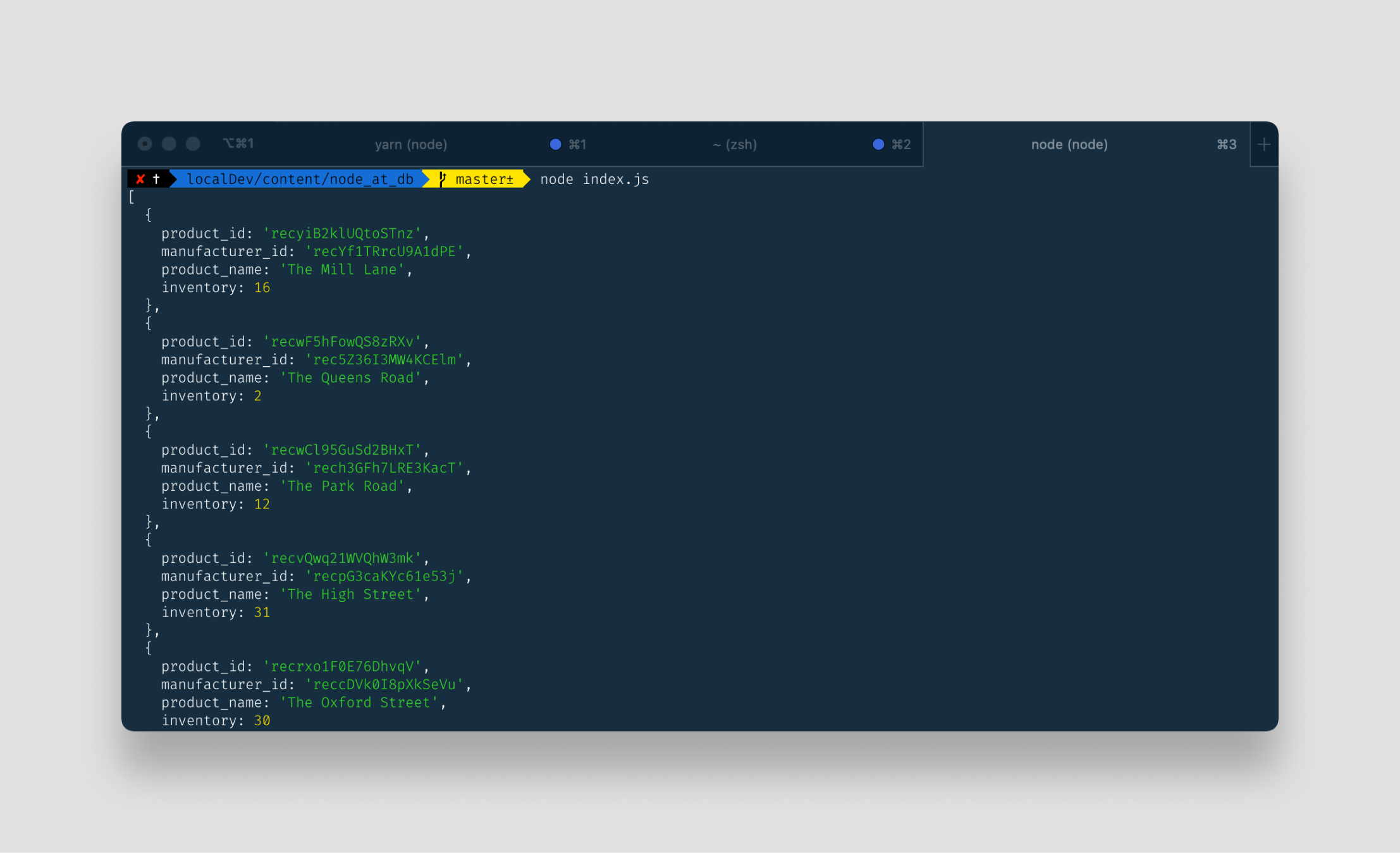
$ node index.js) you’ll see you now have the exact data you need in a clean structure:
Writing Data
For any product that is running low on inventory, we want to automatically place a new purchase order to replenish our stock by adding a record to thePurchase Orders table.
Sequin promotes a one-way data flow: read from the Sequin database and write through the Sequin API proxy.
When we write through the Sequin proxy, Sequin will take care of request throttling AND ensure all new updates, creates, and deletes appear in Airtable and your Sequin database simultaneously.
Before we create the function to write data through the Sequin proxy, we need to do a little housekeeping by adding a helper function to our script that calculates which products need to be replenished.
In index.js make the following adjustments:
- In the
getProducts()function, replaceconsole.log(res.rows)statement withreturn res.rows;. Now this function actually returns a list of products. - Next, add a helper function,
findProductsToOrder. This function first callsgetProducts()and then returns just the product that are running low using thefiltermethod (in this case, we’re saying any product with less than 20 items in inventory is low).
proxy.sequin.io/ to the beginning of the hostname.
As with any Airtable API request, you’ll need your Airtable API key to authenticate the request and a Base ID. Retrieve these two values from your Airtable accounts page and the API docs (just select the “Inventory Management” base and you’ll see your Base ID in green). Add these to your .env file:
index.js. In this tutorial, we’ll use node-fetch to make HTTP requests. At the the top of index.js, declare fetch:
placeOrder(), that will use the Sequin proxy to write new purchase orders back to Airtable:
- The function will take in a product object as an argument.
- First, the function defines the
bodyof the HTTP request you’ll send to the Sequin proxy. The field names and values match what you’ll find in the Airtable docs. - Next, you make the fetch request. The URL points to the Sequin proxy and the path indicates the base and table you want to write to. The method is
POSTsince you are writing new records to the table.
Note that the request is formatted identically to a standard AirtableNow, add one more helper function to your script calledPOSTrequest, from the body to the headers. Only the host (proxy.sequin.io) differs. As such, instead of usingfetch, you can still use Airtable.js with the Sequin proxy. You just need to set theendpointUrltohttps://proxy.sequin.io/api.airtable.com. You can learn how in the Sequin reference.
replenishInventory. In this function you’ll iterate through each product that needs to be replenished and then call the placeOrder() function to add the purchase order in Airtable (and your Sequin database simultaneously). Here is the complete state of your script:
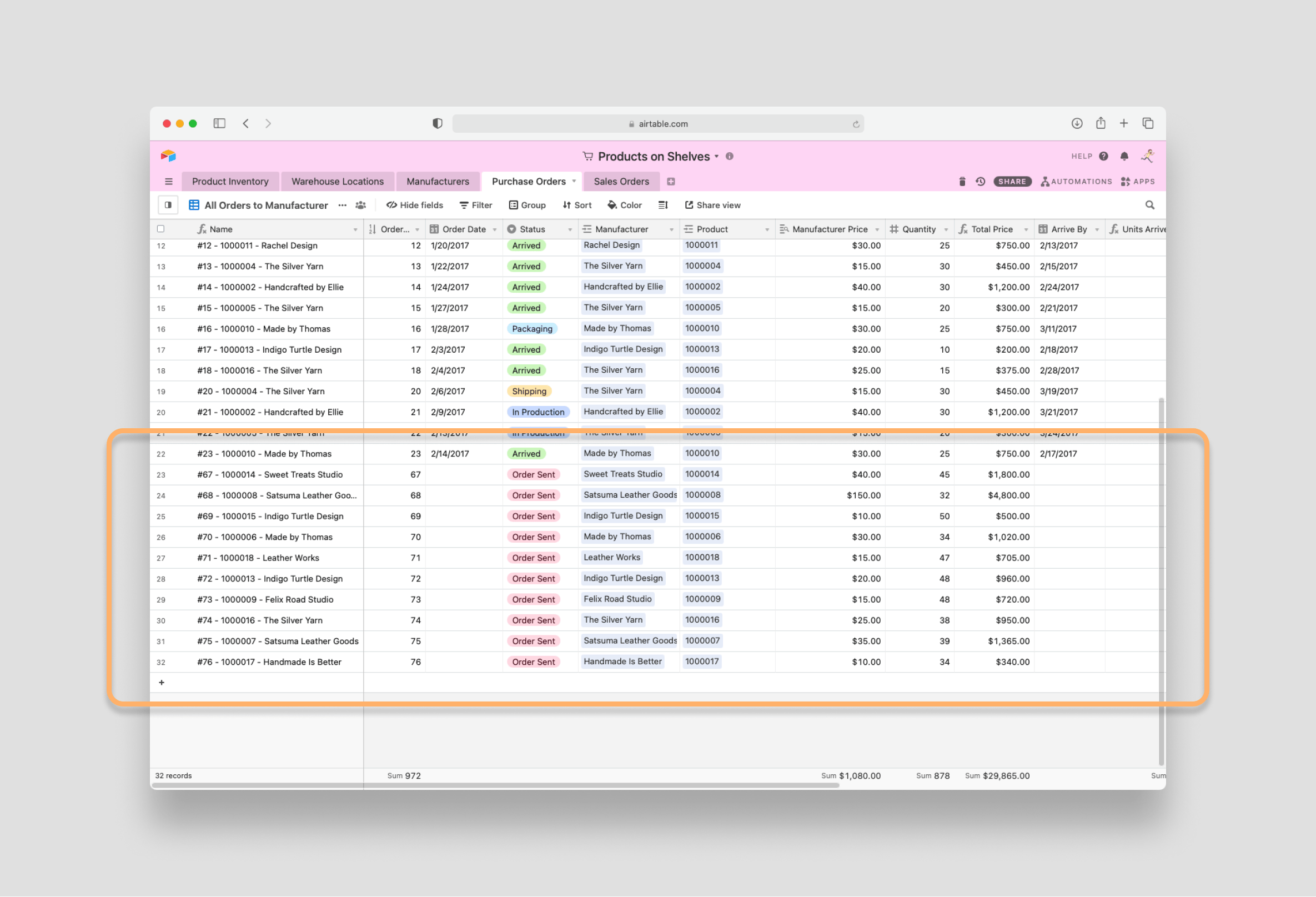
Read after Write
You’ve now pulled in all the products in your Airtable base via Sequin, determined which products need to be replenished, and then used the Sequin proxy to create new purchase orders. Now, let’s add one more function to show the newly created purchase orders in the console to let the user know everything is working (and show off read after writes). Create one more function,confirmOrders(), that queries your Sequin database for new purchase orders:
- First, you await
replenishInventory()which will pull in all the products, calculate which need to be replenished, and place purchase orders. - Then, you define a new SQL query that pulls in all the details from any purchase orders that are created today. This is a crude way to see all your new purchase orders.
- Last, you log the results.