> ## Documentation Index
> Fetch the complete documentation index at: https://sequin.io/docs/llms.txt
> Use this file to discover all available pages before exploring further.
# Shopify Setup
**Pardon the mess**
You are viewing docs related to an older version of Sequin. We're in the process of updating our provider-specific guides and will be done in a few weeks (May 2024). [Please click here](/docs/) to view the latest version of the docs.
If you're interested in Shopify and want to learn more about what's changing, [send us a note](mailto:support@sequin.io).
This guide walks you through setting up Shopify on Sequin.
In just a couple of minutes, you'll have a Postgres database with all your Shopify data, syncing in real-time.
## Connect your Shopify Store[](#connect-your-shopify-store "Direct link to Connect your Shopify Store")
First, connect to your Shopify store using your Shopify credentials.
**Step 1:** Create a new Sequin account at [https://console.sequin.io/signup](https://console.sequin.io/signup).
**Step 2:** Select **Shopify** as the platform you want to sync.
**Step 3:** Enter your **`.myshopify.com` store domain** and click the **Connect to Shopify** button.
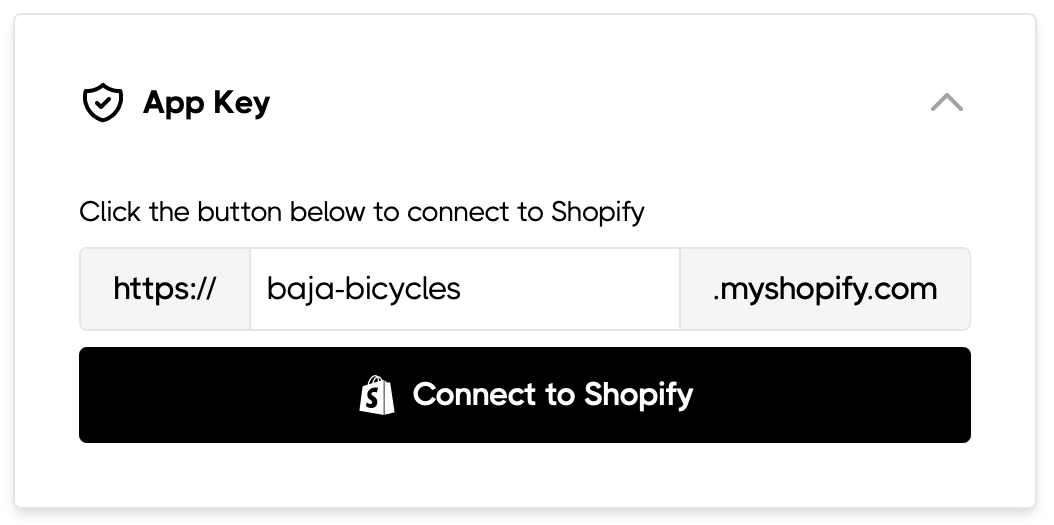 > You can find your `.myshopify.com` domain from the [Domains](https://www.shopify.com/admin/settings/domains) page of your Shopify admin.
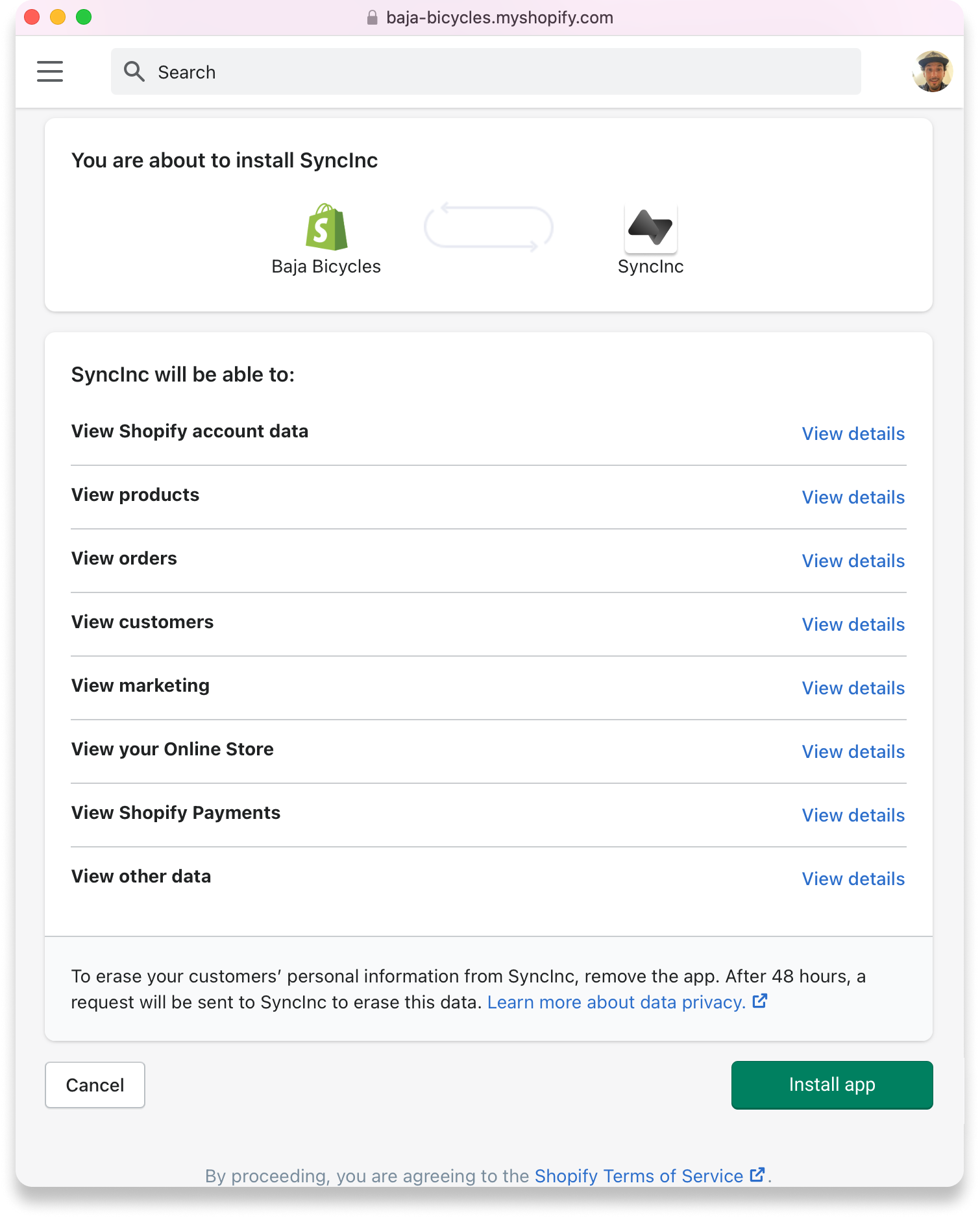
**Step 4:** Login to your Shopify account and then approve the Sequin Shopify app:
> You can find your `.myshopify.com` domain from the [Domains](https://www.shopify.com/admin/settings/domains) page of your Shopify admin.
**Step 4:** Login to your Shopify account and then approve the Sequin Shopify app:
 **Step 5:** Select the tables you want to sync. By default, we'll sync all the tables. You can adjust which tables you sync at anytime.
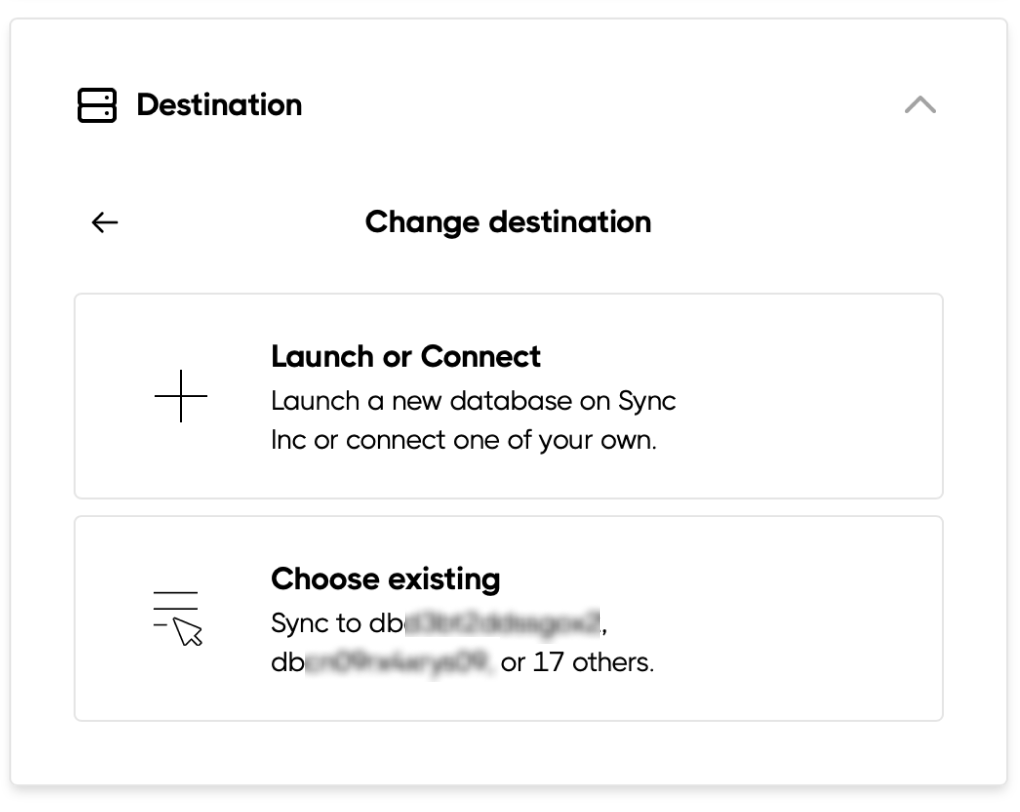
**Step 6:** Select the destination database you want to sync your data to. By default, we'll sync to a new Postgres Database we host for you. Or, we can sync to a new schema in a database you've created with Sequin or that you host:
**Step 5:** Select the tables you want to sync. By default, we'll sync all the tables. You can adjust which tables you sync at anytime.
**Step 6:** Select the destination database you want to sync your data to. By default, we'll sync to a new Postgres Database we host for you. Or, we can sync to a new schema in a database you've created with Sequin or that you host:
 **Step 7:** Click **Create**.
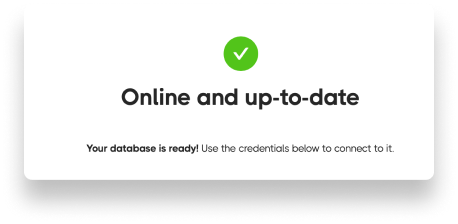
After you click **Create**, we'll immediately connect to your Shopify store and begin back filling all your data.
**Step 7:** Click **Create**.
After you click **Create**, we'll immediately connect to your Shopify store and begin back filling all your data.
 ## Connect to your Postgres database[](#connect-to-your-postgres-database "Direct link to Connect to your Postgres database")
As soon as your database is provisioned, you can connect to it and start querying.
If you chose to sync your data to a Sequin provisioned database, then your database is hosted on AWS RDS. If you chose to sync to a database you are hosting, then you or a database admin will know the details of your hosting.
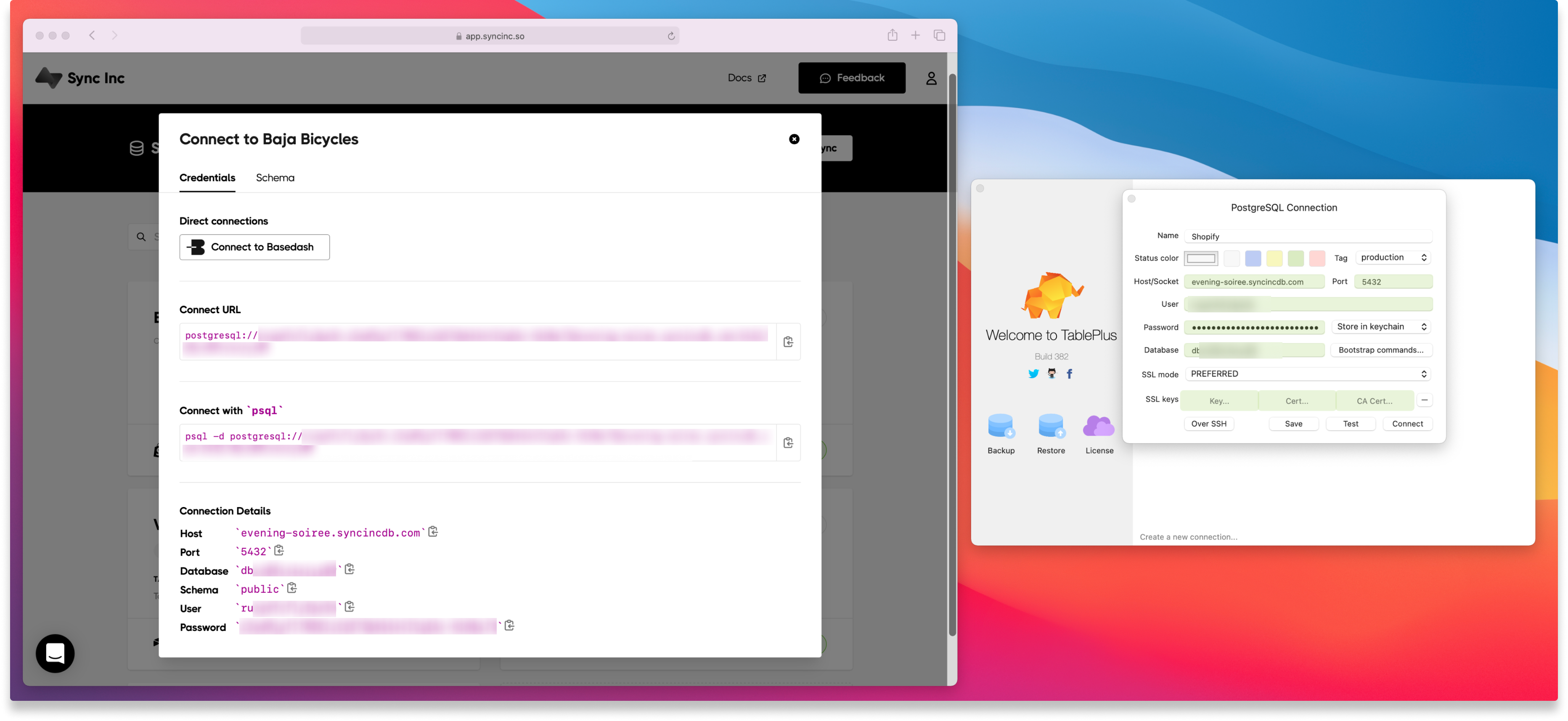
For this setup guide, we'll use [TablePlus](https://tableplus.com/) as an example.
**Step 1:** Download and install TablePlus from [https://tableplus.com/](https://tableplus.com/).
**Step 2:** Open TablePlus and click **Create a new connection...**
**Step 3:** Click the **Import from URL** button.
**Step 4:** Copy and paste the **Connect URL** from Sequin into the **Connection URL** in TablePlus then click **Import**.
**Step 5:** Then name your TablePlus connection and click **Create**.
## Connect to your Postgres database[](#connect-to-your-postgres-database "Direct link to Connect to your Postgres database")
As soon as your database is provisioned, you can connect to it and start querying.
If you chose to sync your data to a Sequin provisioned database, then your database is hosted on AWS RDS. If you chose to sync to a database you are hosting, then you or a database admin will know the details of your hosting.
For this setup guide, we'll use [TablePlus](https://tableplus.com/) as an example.
**Step 1:** Download and install TablePlus from [https://tableplus.com/](https://tableplus.com/).
**Step 2:** Open TablePlus and click **Create a new connection...**
**Step 3:** Click the **Import from URL** button.
**Step 4:** Copy and paste the **Connect URL** from Sequin into the **Connection URL** in TablePlus then click **Import**.
**Step 5:** Then name your TablePlus connection and click **Create**.
 ## Query Shopify with SQL[](#query-shopify-with-sql "Direct link to Query Shopify with SQL")
You'll now see all your Shopify data represented in Postgres. To start querying, click the **SQL** button and write your first statement:
```sql theme={null}
select
customer.id,
count(order.id),
sum(order.total_price)
from
customer
left join public.order
on order.customer_id = customer.id
group by customer.id;
```
## Query Shopify with SQL[](#query-shopify-with-sql "Direct link to Query Shopify with SQL")
You'll now see all your Shopify data represented in Postgres. To start querying, click the **SQL** button and write your first statement:
```sql theme={null}
select
customer.id,
count(order.id),
sum(order.total_price)
from
customer
left join public.order
on order.customer_id = customer.id
group by customer.id;
```