> ## Documentation Index
> Fetch the complete documentation index at: https://sequin.io/docs/llms.txt
> Use this file to discover all available pages before exploring further.
# HubSpot Setup
**Pardon the mess**
You are viewing docs related to an older version of Sequin. We're in the process of updating our provider-specific guides and will be done in a few weeks (May 2024). [Please click here](/docs/) to view the latest version of the docs.
If you're interested in HubSpot and want to learn more about what's changing, [send us a note](mailto:support@sequin.io).
**Sync all your HubSpot data to your Postgres database in real-time. Query your CRM data with SQL. And `insert`, `update`, or `delete` HubSpot records in both HubSpot and your database simultaneously.**
This guide walks you through setting up a real-time sync between HubSpot and your database using Sequin.
In just a couple of minutes, you'll configure and start your sync, read your HubSpot data, and write an update back to HubSpot.
## Create a HubSpot sync[](#create-a-hubspot-sync "Direct link to Create a HubSpot sync")
Connect HubSpot and your database to Sequin to start your sync.
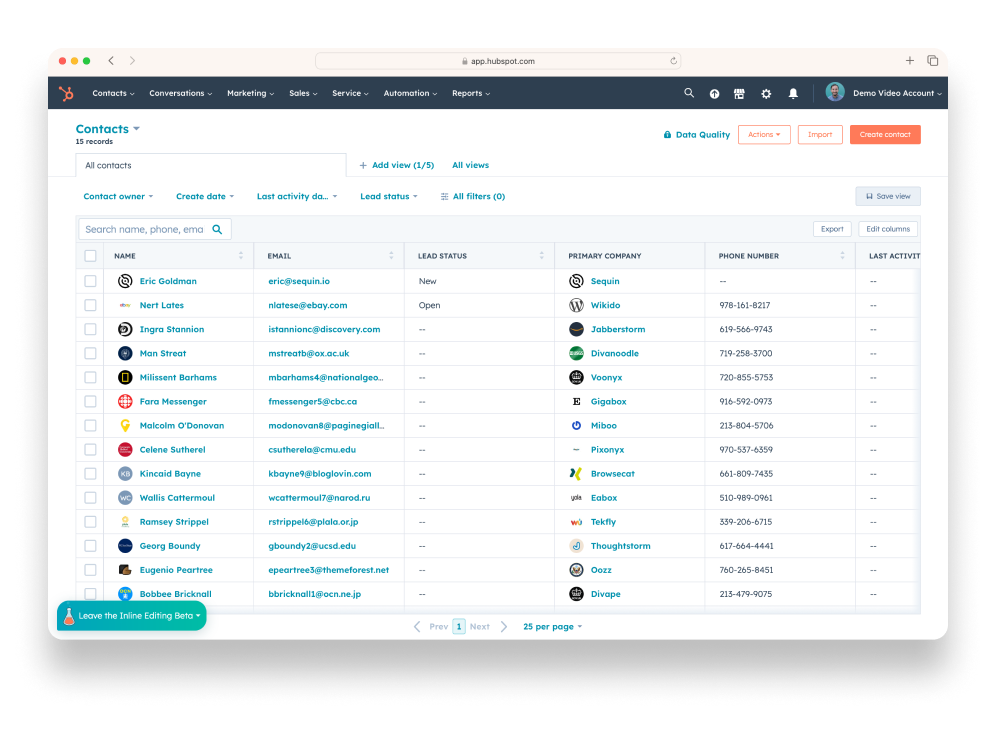 **Step 1:** Create a new Sequin account at [https://console.sequin.io/signup](https://console.sequin.io/signup).
**Step 2:** Select **HubSpot** as the platform you want to sync.
**Step 3:** Now create the connection to HubSpot by selecting **Add new API key**.
**Step 1:** Create a new Sequin account at [https://console.sequin.io/signup](https://console.sequin.io/signup).
**Step 2:** Select **HubSpot** as the platform you want to sync.
**Step 3:** Now create the connection to HubSpot by selecting **Add new API key**.
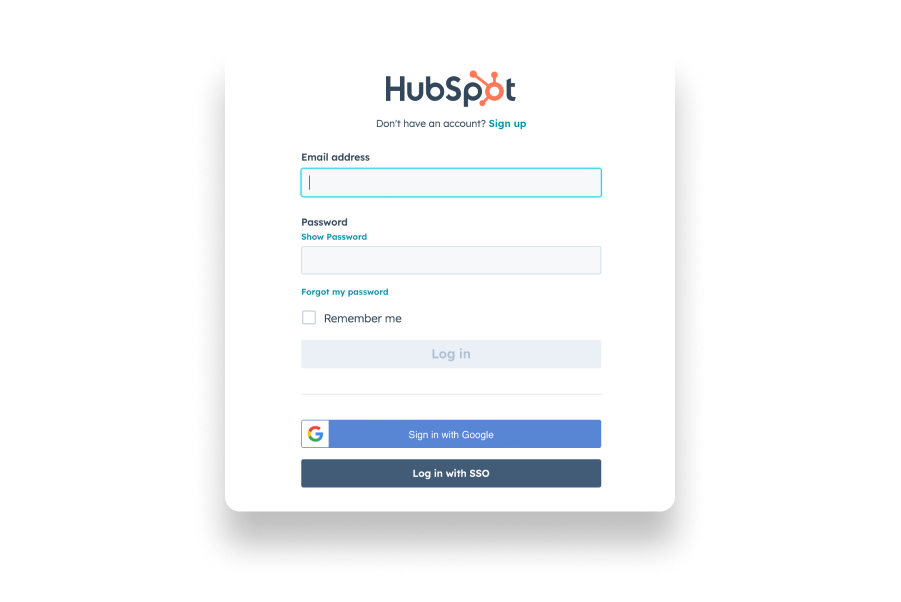 **Step 4:** Select the **HubSpot objects** you want to sync to your database. Sequin syncs HubSpot's standard objects, custom objects, and associations to tables in your database.
**Step 5:** By default, Sequin syncs all the standard and custom **properties** of each HubSpot object to columns in your database. You can [choose which properties will sync](/docs/data-mapping#selecting-columns) to your database.
**Step 6:** Connect to the destination database you want to sync your HubSpot data to. Sync to a database you host by choosing the **Connect** option and following the steps to [connect to your database](/docs/sync-process/self-hosted#self-hosted-database-setup). Or, if you want to get up and running quickly, click the **Launch** option to spin up a demo database we host for you (on Amazon RDS).
**Step 7:** Click **Create**.
After you click **Create**, Sequin will begin backfilling all your data. We'll show you the progress we're making in the console. Within a minute or two, you can begin exploring your schema and querying your data in SQL. We'll send you an email when your backfill is complete.
## Query your HubSpot data using SQL[](#query-your-hubspot-data-using-sql "Direct link to Query your HubSpot data using SQL")
Connect to your database via [Sequin's Postgres Proxy](/docs/sql-writes), which lets you write to your synced tables as well as read them. We'll use [psql](https://www.postgresql.org/docs/current/app-psql.html) as an example in this setup guide, but you can use any SQL client that works with Postgres.
**Step 1:** Go to **Connection Instructions** on the Sequin console. Copy the `psql` command to connect to your database via the Proxy.
**Step 2:** Open your terminal, and paste the `psql` command. Press **Enter**. This will open a connection to your database so you can write your first query:
```sql theme={null}
psql -d {your_connection_string_here}
psql (14.2, server 12.11)
Type "help" for help.
db7hea89oah3tas=>
```
**Step 3:** To get a sense of your schema, list all the tables you're syncing to your database by typing the command `\dt`:
```sql theme={null}
db7hea89oah3tas=> \dt
List of relations
Schema | Name | Type | Owner
--------+---------------------------+-------+----------
public | _sync_cdc | table | postgres
public | associations_company_deal | table | postgres
public | company | table | postgres
public | contact | table | postgres
public | deal | table | postgres
(5 rows)
```
You'll see all the HubSpot objects you selected when setting up your sync are now tables in your database. You'll also see some `_sync` tables which Sequin uses to manage your sync.
**Step 4**: Now, write your first query. You can start with a simple `select` to get your bearings:
```sql theme={null}
db7hea89oah3tas=> select count(*) from contact;
count
-------
15
(1 row)
```
Now, pull the contact `id`, `firstname`, and `lastname` for a specific customer to use in the next step:
```sql theme={null}
db7hea89oah3tas=> select id, firstname, lastname from contact where email='eric@sequin.io';
id | firstname | lastname
------+-----------+----------
1001 | Eric | Goldman
(1 row)
```
Great, you can now use this `id` in the last step of this setup guide.
## Write back to HubSpot[](#write-back-to-hubspot "Direct link to Write back to HubSpot")
To create, update, or delete objects in HubSpot, you can `insert`, `update`, or `delete` rows in your Postgres database.
When you're connected to your database through the Sequin Proxy, the Proxy listens for changes. When you make a mutation, the Proxy applies the mutation to HubSpot's API first. If the mutation succeeds, your database is updated as well. If it fails, your database mutation will be rolled back, and you'll receive a Postgres error.
In this example, you'll update the `contact` in the prior step by giving them a new first and last name:
```sql theme={null}
update contacts
set firstname = 'Sequin', lastname = 'Setup'
where id = '{{contact_id}}'
```
This call will update the first and last name of that contact. If the Postgres write returned without an error, that means the API write succeeded as well!
You can see over on HubSpot that the record has updated.
**Step 3:** Now, confirm the change in your database. Go back to `psql` and check the contact you just updated:
```sql theme={null}
db7hea89oah3tas=> select firstname, lastname from contact where id='{{contact_id}}';
firstname | lastname
-----------+----------
Sequin | Setup
(1 row)
```
Great, HubSpot and your database were updated simultaneously.
## Next steps[](#next-steps "Direct link to Next steps")
Your HubSpot tables are now available as fully readable and writeable tables in your database. You can query for all your data using SQL, and mutate data thanks to Sequin's Postgres Proxy. To build on this foundation, here are some next steps:
* [Setup your ORM](/docs/reads) to work with your synced tables.
* Edit the HubSpot objects and properties you're syncing at any time.
* Create [views](https://www.postgresql.org/docs/current/tutorial-views.html) on your HubSpot data to tailor your schema to your needs.
* Invite your team to your Sequin account and start building!
If you need assistance setting up your sync, just [send us a note](mailto:support@sequin.io). We're around and eager to help.
**Step 4:** Select the **HubSpot objects** you want to sync to your database. Sequin syncs HubSpot's standard objects, custom objects, and associations to tables in your database.
**Step 5:** By default, Sequin syncs all the standard and custom **properties** of each HubSpot object to columns in your database. You can [choose which properties will sync](/docs/data-mapping#selecting-columns) to your database.
**Step 6:** Connect to the destination database you want to sync your HubSpot data to. Sync to a database you host by choosing the **Connect** option and following the steps to [connect to your database](/docs/sync-process/self-hosted#self-hosted-database-setup). Or, if you want to get up and running quickly, click the **Launch** option to spin up a demo database we host for you (on Amazon RDS).
**Step 7:** Click **Create**.
After you click **Create**, Sequin will begin backfilling all your data. We'll show you the progress we're making in the console. Within a minute or two, you can begin exploring your schema and querying your data in SQL. We'll send you an email when your backfill is complete.
## Query your HubSpot data using SQL[](#query-your-hubspot-data-using-sql "Direct link to Query your HubSpot data using SQL")
Connect to your database via [Sequin's Postgres Proxy](/docs/sql-writes), which lets you write to your synced tables as well as read them. We'll use [psql](https://www.postgresql.org/docs/current/app-psql.html) as an example in this setup guide, but you can use any SQL client that works with Postgres.
**Step 1:** Go to **Connection Instructions** on the Sequin console. Copy the `psql` command to connect to your database via the Proxy.
**Step 2:** Open your terminal, and paste the `psql` command. Press **Enter**. This will open a connection to your database so you can write your first query:
```sql theme={null}
psql -d {your_connection_string_here}
psql (14.2, server 12.11)
Type "help" for help.
db7hea89oah3tas=>
```
**Step 3:** To get a sense of your schema, list all the tables you're syncing to your database by typing the command `\dt`:
```sql theme={null}
db7hea89oah3tas=> \dt
List of relations
Schema | Name | Type | Owner
--------+---------------------------+-------+----------
public | _sync_cdc | table | postgres
public | associations_company_deal | table | postgres
public | company | table | postgres
public | contact | table | postgres
public | deal | table | postgres
(5 rows)
```
You'll see all the HubSpot objects you selected when setting up your sync are now tables in your database. You'll also see some `_sync` tables which Sequin uses to manage your sync.
**Step 4**: Now, write your first query. You can start with a simple `select` to get your bearings:
```sql theme={null}
db7hea89oah3tas=> select count(*) from contact;
count
-------
15
(1 row)
```
Now, pull the contact `id`, `firstname`, and `lastname` for a specific customer to use in the next step:
```sql theme={null}
db7hea89oah3tas=> select id, firstname, lastname from contact where email='eric@sequin.io';
id | firstname | lastname
------+-----------+----------
1001 | Eric | Goldman
(1 row)
```
Great, you can now use this `id` in the last step of this setup guide.
## Write back to HubSpot[](#write-back-to-hubspot "Direct link to Write back to HubSpot")
To create, update, or delete objects in HubSpot, you can `insert`, `update`, or `delete` rows in your Postgres database.
When you're connected to your database through the Sequin Proxy, the Proxy listens for changes. When you make a mutation, the Proxy applies the mutation to HubSpot's API first. If the mutation succeeds, your database is updated as well. If it fails, your database mutation will be rolled back, and you'll receive a Postgres error.
In this example, you'll update the `contact` in the prior step by giving them a new first and last name:
```sql theme={null}
update contacts
set firstname = 'Sequin', lastname = 'Setup'
where id = '{{contact_id}}'
```
This call will update the first and last name of that contact. If the Postgres write returned without an error, that means the API write succeeded as well!
You can see over on HubSpot that the record has updated.
**Step 3:** Now, confirm the change in your database. Go back to `psql` and check the contact you just updated:
```sql theme={null}
db7hea89oah3tas=> select firstname, lastname from contact where id='{{contact_id}}';
firstname | lastname
-----------+----------
Sequin | Setup
(1 row)
```
Great, HubSpot and your database were updated simultaneously.
## Next steps[](#next-steps "Direct link to Next steps")
Your HubSpot tables are now available as fully readable and writeable tables in your database. You can query for all your data using SQL, and mutate data thanks to Sequin's Postgres Proxy. To build on this foundation, here are some next steps:
* [Setup your ORM](/docs/reads) to work with your synced tables.
* Edit the HubSpot objects and properties you're syncing at any time.
* Create [views](https://www.postgresql.org/docs/current/tutorial-views.html) on your HubSpot data to tailor your schema to your needs.
* Invite your team to your Sequin account and start building!
If you need assistance setting up your sync, just [send us a note](mailto:support@sequin.io). We're around and eager to help.