> ## Documentation Index
> Fetch the complete documentation index at: https://sequin.io/docs/llms.txt
> Use this file to discover all available pages before exploring further.
# Windmill
> [Windmill](https://www.windmill.dev/) lets you build internal tools fast. It comes with a drag-and-drop component canvas, query builders, and more.
You can use Sequin to build Windmill apps on top of APIs like Salesforce and HubSpot. Sequin will sync your API data to a Postgres database so you can write your integration in SQL. Changes you make to your database records will be applied to the API and your database at the same time.
While Windmill has connectors for many APIs, it's much faster to build with Windmill's Postgres adapter. You don't have to worry about rate limits and SQL is both familiar and expressive.
## Setup a Sequin sync[](#setup-a-sequin-sync "Direct link to Setup a Sequin sync")
Before you can use Sequin with Windmill, you'll need to create a sync. Sequin will guide you through authenticating, selecting the data you want to sync, and connecting to your database. Read our [getting started guide](https://docs.sequin.io/getting-started#create-a-sync) for step-by-step instructions.
## Create a Windmill Resource[](#create-a-windmill-resource "Direct link to Create a Windmill Resource")
Windmill provides integrations with many different apps and services with [Resources](https://www.windmill.dev/docs/core%5Fconcepts/resources%5Fand%5Ftypes). Each Resource has a Resource Type (PostgreSQL, MySQL, BigQuery, Snowflake) that defines the schema that the resource of this type needs to implement.
Sequin uses a [Postgres Proxy](https://docs.sequin.io/writes#configuration) to interface with your Sequin-synced tables. The Proxy lets Sequin capture inserts, updates, and deletes you make in your database and commit them to the API.
To add Sequin's Postgres Proxy as a Windmill Resource, you can treat it as a regular Postgres Resource and enter the connection details in the Resource configuration:
**Step 1:** Go to your Windmill dashboard and find "Resources" on the left sidebar. Click on the “Add Resource” button
**Step 2:** Select PostgreSQL type.
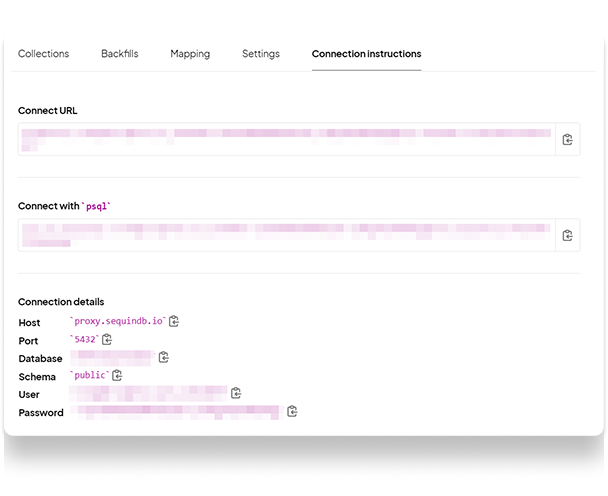
**Step 3:** Fill out the form with the information. Give it a name and paste the values for host, database name, database username, and database password from the *Connection instructions* tab of your Sequin dashboard.
 ## Using the Postgres Resource in Windmill[](#using-the-postgres-resource-in-windmill "Direct link to Using the Postgres Resource in Windmill")
Now, Sequin is syncing your API data to Postgres. You've also connected Windmill to Postgres via Sequin's Proxy. To query this data in your Windmill app, go back to your Windmill dashboard and find “Home”:
**Step 1:** From the [Home](https://app.windmill.dev/) page, click on the "+Script" button.
**Step 2:** Name the Script, give it a summary, and select your “PostgreSQL” as language.
**Step 3:** In the list of Resources, select the Postgres connection to Sequin.
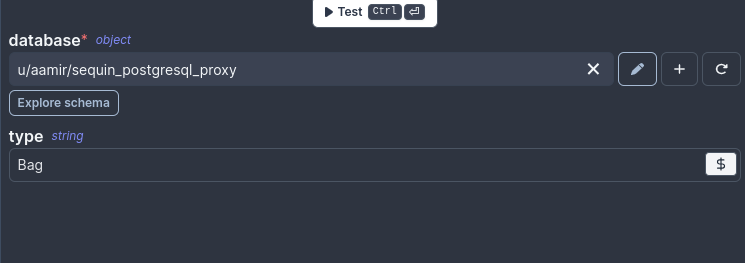
**Step 4:** Compose your query. The schema for your Sequin-synced tables is available if you click “Explore schema” button right under the database name.
**Step 5:** Click the "Test" button on the top right to make sure your query runs as expected.
Here's an example Airtable query that returns all the product names in the Products Inventory table, which are of the type “Bag”.
```sql theme={null}
-- $1 type = Bag
/*Assumes the default value Bag but can be changed from the menu.*/
SELECT product_name from airtable.product_inventory WHERE type = $1::TEXT
```
The type is an argument with a default value of “Bag” but you can always pass a different value from the input field right below the “Test” button.
## Using the Postgres Resource in Windmill[](#using-the-postgres-resource-in-windmill "Direct link to Using the Postgres Resource in Windmill")
Now, Sequin is syncing your API data to Postgres. You've also connected Windmill to Postgres via Sequin's Proxy. To query this data in your Windmill app, go back to your Windmill dashboard and find “Home”:
**Step 1:** From the [Home](https://app.windmill.dev/) page, click on the "+Script" button.
**Step 2:** Name the Script, give it a summary, and select your “PostgreSQL” as language.
**Step 3:** In the list of Resources, select the Postgres connection to Sequin.
**Step 4:** Compose your query. The schema for your Sequin-synced tables is available if you click “Explore schema” button right under the database name.
**Step 5:** Click the "Test" button on the top right to make sure your query runs as expected.
Here's an example Airtable query that returns all the product names in the Products Inventory table, which are of the type “Bag”.
```sql theme={null}
-- $1 type = Bag
/*Assumes the default value Bag but can be changed from the menu.*/
SELECT product_name from airtable.product_inventory WHERE type = $1::TEXT
```
The type is an argument with a default value of “Bag” but you can always pass a different value from the input field right below the “Test” button.
 ## Writing back to the API[](#writing-back-to-the-api "Direct link to Writing back to the API")
With Sequin, you can also make [mutations](https://docs.sequin.io/writes) via your database as well. Inserts, updates, and deletes you make to Sequin-synced tables are first applied to the API. If they pass validation, they're committed to your database.
To write your first mutation query, navigate to "Home" on the left sidebar and click the “+Script” button.
In the list of Resources, select the Postgres connection to Sequin.
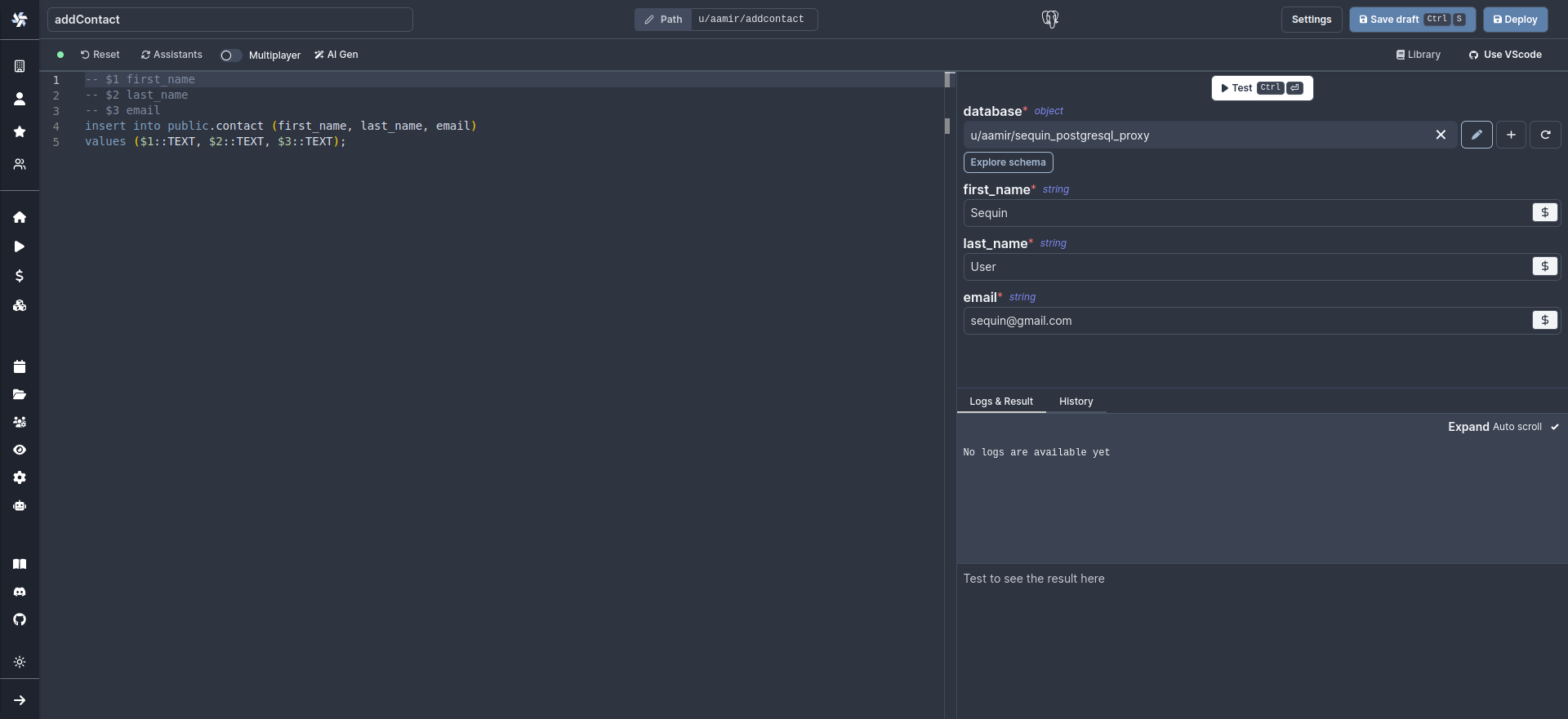
You can compose an `insert` query by populating `values` with various input fields in your application. For example, if you have a form with inputs named `first_name`, `last_name`, and `email`, the corresponding `insert` query would look like this:
```sql theme={null}
insert into salesforce.contact (first_name, last_name, email)
values ($1::TEXT, $2::TEXT, $3::TEXT);
```
Provide argument values and click on the "Test" button in the top right to execute the insert query.
## Writing back to the API[](#writing-back-to-the-api "Direct link to Writing back to the API")
With Sequin, you can also make [mutations](https://docs.sequin.io/writes) via your database as well. Inserts, updates, and deletes you make to Sequin-synced tables are first applied to the API. If they pass validation, they're committed to your database.
To write your first mutation query, navigate to "Home" on the left sidebar and click the “+Script” button.
In the list of Resources, select the Postgres connection to Sequin.
You can compose an `insert` query by populating `values` with various input fields in your application. For example, if you have a form with inputs named `first_name`, `last_name`, and `email`, the corresponding `insert` query would look like this:
```sql theme={null}
insert into salesforce.contact (first_name, last_name, email)
values ($1::TEXT, $2::TEXT, $3::TEXT);
```
Provide argument values and click on the "Test" button in the top right to execute the insert query.
 ## Errors[](#errors "Direct link to Errors")
When Sequin's Proxy encounters an error trying to apply your mutation in the upstream API, the Proxy returns a standard Postgres error. You can configure your app to display this as an alert notification.
Let’s say you make a mutation to a Salesforce Contact with an invalid email. Salesforce will return a validation error. You can configure your Windmill app to display this as a helpful error message.
As an example, Windmill has a Submit button with an onFailure property. You can display an error message to the user if the script throws an error:
## Errors[](#errors "Direct link to Errors")
When Sequin's Proxy encounters an error trying to apply your mutation in the upstream API, the Proxy returns a standard Postgres error. You can configure your app to display this as an alert notification.
Let’s say you make a mutation to a Salesforce Contact with an invalid email. Salesforce will return a validation error. You can configure your Windmill app to display this as a helpful error message.
As an example, Windmill has a Submit button with an onFailure property. You can display an error message to the user if the script throws an error:
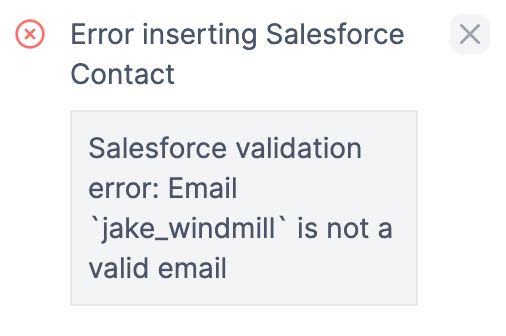
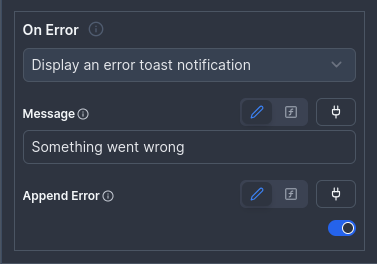 By setting "Append Error" to true, Windmill will append the error returned by Salesforce to the toast notification:
 ## Next steps[](#next-steps "Direct link to Next steps")
You can now use Windmill to build on top of sources like Salesforce, Airtable, and HubSpot. If you have any questions, please [reach out to us](mailto:support@sequin.io).
## Next steps[](#next-steps "Direct link to Next steps")
You can now use Windmill to build on top of sources like Salesforce, Airtable, and HubSpot. If you have any questions, please [reach out to us](mailto:support@sequin.io).