> ## Documentation Index
> Fetch the complete documentation index at: https://sequin.io/docs/llms.txt
> Use this file to discover all available pages before exploring further.
# Supabase
> [Supabase](https://supabase.io) is an open source Firebase alternative built on PostgreSQL. It provides a suite of tools to build your application, including authentication, database, and storage.
Sequin syncs platforms like Stripe and Salesforce with Supabase in real-time. For instance, "Contacts" in Salesforce become a `contacts` table in your Supabase database. Or "Customers" in Stripe become a `customers` table in your Supabase database. You can then integrate this data into your application using Supabase's tools.
This guide explains how to setup a sync between Sequin and a Supabase Postgres database.
## Connect Sequin to Supabase[](#connect-sequin-to-supabase "Direct link to Connect Sequin to Supabase")
If you haven't already, setup your [Supabase organization and project](https://supabase.com/docs/guides/platform). Once you have a project up and running, you'll be able to connect Sequin to your Supabase project's database.
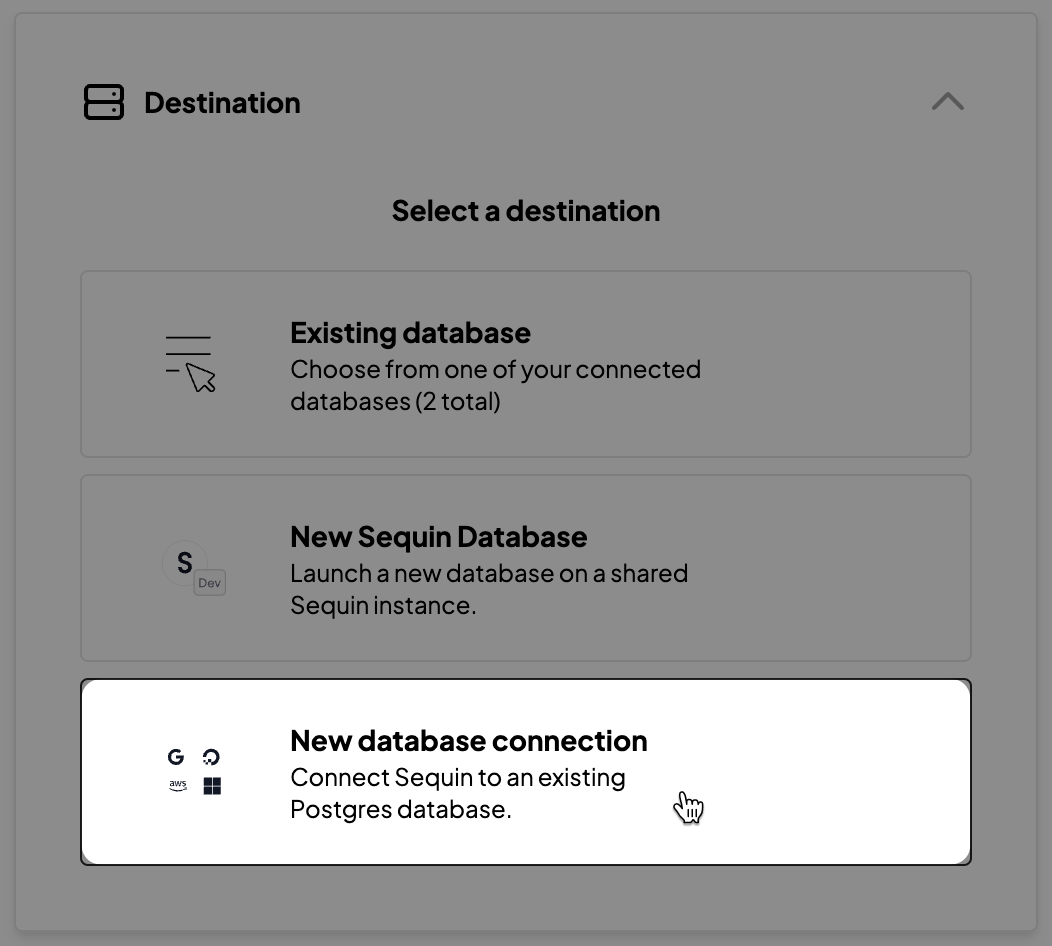
**Step 1:** In the Sequin console, [start a new sync](https://docs.sequin.io/getting-started#create-a-sync) or go to the **Settings** tab of an existing sync. In the **Destination** section of your sync configuration, click **New database connection**:
 **Step 2:** In the modal that opens, you'll see instructions with SQL snippets that explain how to create a new `sequin` user in your Supabase database. Run the code snippets in the **SQL Editor** in your **Supabase dashboard** to create the user:
1. **Create a Postgres user for Sequin:**
```
create user sequin with encrypted password '▀▀▀▀▀▀';
```
2. **Grant permissions:**
```
grant connect, create on database YOUR_DBNAME to sequin;
```
3. **Create a Sequin read role:** Later, you'll grant this [read role](https://docs.sequin.io/sync-process/self-hosted#the-sequin-read-role) to other Supabase database users so they can access and work with the Sequin tables.
```
create role sequin_read with admin sequin;
```
**Step 4:** Now, you'll use the credentials for the `sequin` user to connect Sequin to your Supabase database.
First, get the connection credentials for your Supabase database. In the Supabase dashboard, go to the settings page and open up your **Database** settings. In the **Connection info** section, you'll find the credentials for your database.
Now, enter the database connection details in Sequin.
Remeber to use the `sequin` user and password you created in the previous step 👆
* **Host:** The host for your Supabse database.
* **Port:** The port for your Supabase database (usually `5432`).
* **Database:** The name of your Supabase database (usually `postgres`).
* **Schema:** The name of the schema you want to sync to. We'd recommend naming it after your source (i.e. `stripe` or `salesforce`)
* **Username:** The `sequin` user you created.
* **Password:** The password for the `sequin` user you created.
* **SSL:** Set this to `true`.
**Step 5:** Once you've entered all the details, click **Continue**. Sequin will connect to your Supabase database and verify everything is configured properly. Finish setting up your sync.
## Grant Permissions[](#grant-permissions "Direct link to Grant Permissions")
With your Supabse database connected, Sequin will start syncing your data to a new schema in the database. You might not see your new synced schema appear in the Supabse dashboard. That's because Supabase doesn't automatically grant all user's in the database permissions to work with new schemas.
To ensure other database users can access the synced schema Sequin manages, you'll need to run a couple permission grants.
In the Supabase dashboard, go to the **SQL Editor** and run the following permission grants:
```
GRANT sequin_read TO postgres, anon, authenticated, service_role;
GRANT USAGE ON SCHEMA {{your_schema_name}} TO anon, authenticated, service_role;
GRANT ALL ON ALL TABLES IN SCHEMA {{your_schema_name}} TO anon, authenticated, service_role;
ALTER DEFAULT PRIVILEGES FOR ROLE postgres IN SCHEMA {{your_schema_name}} GRANT ALL ON TABLES TO anon, authenticated, service_role;
```
These permission grants ensure that Supabase database users can access and read all the tables in your synced schema. If you go back to the Supabase **Table editor**, you should now see your synced schema.
## Sequin Proxy[](#sequin-proxy "Direct link to Sequin Proxy")
Sequin uses a [Postgres Proxy](https://docs.sequin.io/writes) to interface with your Sequin-synced tables. The Proxy lets Sequin capture inserts, updates, and deletes you make in your database and commit them to the API.
When using Sequin with Supabase, we recommend that anytime you read or write to your Sequin synced schemas, you connect to the Supabase database through the proxy. You can connect to the proxy from any Postres client or ORM. But note that you **should not** write to your synced tables using the Supabse clients - as this will bypass the Sequin proxy.
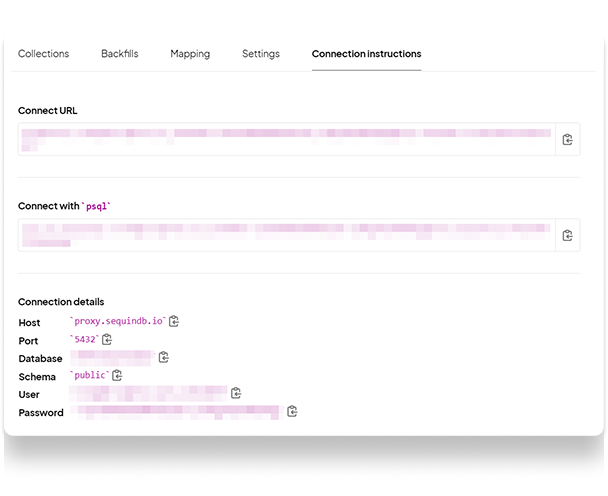
To connect to the Sequin Proxy, configure your postgres client, library or ORM to use the `host`, `port`, `database`, `user`, and `password` provided to you on the **Connection instructions** tab of your Sequin sync.
**Step 2:** In the modal that opens, you'll see instructions with SQL snippets that explain how to create a new `sequin` user in your Supabase database. Run the code snippets in the **SQL Editor** in your **Supabase dashboard** to create the user:
1. **Create a Postgres user for Sequin:**
```
create user sequin with encrypted password '▀▀▀▀▀▀';
```
2. **Grant permissions:**
```
grant connect, create on database YOUR_DBNAME to sequin;
```
3. **Create a Sequin read role:** Later, you'll grant this [read role](https://docs.sequin.io/sync-process/self-hosted#the-sequin-read-role) to other Supabase database users so they can access and work with the Sequin tables.
```
create role sequin_read with admin sequin;
```
**Step 4:** Now, you'll use the credentials for the `sequin` user to connect Sequin to your Supabase database.
First, get the connection credentials for your Supabase database. In the Supabase dashboard, go to the settings page and open up your **Database** settings. In the **Connection info** section, you'll find the credentials for your database.
Now, enter the database connection details in Sequin.
Remeber to use the `sequin` user and password you created in the previous step 👆
* **Host:** The host for your Supabse database.
* **Port:** The port for your Supabase database (usually `5432`).
* **Database:** The name of your Supabase database (usually `postgres`).
* **Schema:** The name of the schema you want to sync to. We'd recommend naming it after your source (i.e. `stripe` or `salesforce`)
* **Username:** The `sequin` user you created.
* **Password:** The password for the `sequin` user you created.
* **SSL:** Set this to `true`.
**Step 5:** Once you've entered all the details, click **Continue**. Sequin will connect to your Supabase database and verify everything is configured properly. Finish setting up your sync.
## Grant Permissions[](#grant-permissions "Direct link to Grant Permissions")
With your Supabse database connected, Sequin will start syncing your data to a new schema in the database. You might not see your new synced schema appear in the Supabse dashboard. That's because Supabase doesn't automatically grant all user's in the database permissions to work with new schemas.
To ensure other database users can access the synced schema Sequin manages, you'll need to run a couple permission grants.
In the Supabase dashboard, go to the **SQL Editor** and run the following permission grants:
```
GRANT sequin_read TO postgres, anon, authenticated, service_role;
GRANT USAGE ON SCHEMA {{your_schema_name}} TO anon, authenticated, service_role;
GRANT ALL ON ALL TABLES IN SCHEMA {{your_schema_name}} TO anon, authenticated, service_role;
ALTER DEFAULT PRIVILEGES FOR ROLE postgres IN SCHEMA {{your_schema_name}} GRANT ALL ON TABLES TO anon, authenticated, service_role;
```
These permission grants ensure that Supabase database users can access and read all the tables in your synced schema. If you go back to the Supabase **Table editor**, you should now see your synced schema.
## Sequin Proxy[](#sequin-proxy "Direct link to Sequin Proxy")
Sequin uses a [Postgres Proxy](https://docs.sequin.io/writes) to interface with your Sequin-synced tables. The Proxy lets Sequin capture inserts, updates, and deletes you make in your database and commit them to the API.
When using Sequin with Supabase, we recommend that anytime you read or write to your Sequin synced schemas, you connect to the Supabase database through the proxy. You can connect to the proxy from any Postres client or ORM. But note that you **should not** write to your synced tables using the Supabse clients - as this will bypass the Sequin proxy.
To connect to the Sequin Proxy, configure your postgres client, library or ORM to use the `host`, `port`, `database`, `user`, and `password` provided to you on the **Connection instructions** tab of your Sequin sync.
 If you want to be able to read and write data to other schemas in your Supabase database through the Sequin Postgres Proxy (perhaps to `JOIN` data), you'll need to grant the `sequin` user permission to access these tables. To do so, run the following grants in the Supabase SQL editor:
```sql theme={null}
GRANT USAGE ON SCHEMA public TO sequin;
GRANT select, insert, update, delete ON ALL TABLES IN SCHEMA public TO sequin;
```
You can specify the exacact permissions provided to the `sequin` user. The above grants are just an example.
Additionally, if Supabase has [Row-Level Security](https://supabase.com/docs/guides/auth/row-level-security) turned on (on by default), Sequin won't be able to read any of the rows in these schemas. You need to create a new policy to allow Sequin to read everything in the table.
You can create this policy through the Supabase admin area, or via a SQL statement.
```sql theme={null}
CREATE POLICY "Allow Sequin Reads" ON "public"."projects"
AS PERMISSIVE FOR SELECT
TO sequin
USING (true)
```
## Reading[](#reading "Direct link to Reading")
You read from your Sequin synced tables just like you would any other table in your Supabase database.
For example, if you are syncing your Stripe data to Supabase, you can find a customer's subscription status with the following query:
```sql theme={null}
SELECT
subscription.status
FROM
stripe.subscription
WHERE stripe.subscription.customer_id = 'cus_123'
```
Or, let's say you store your Supabase `user_id` as a metadata key in your `stripe.customer` table so you can easily join between the two. Then, you can use the `user_id` to return the subscription status with a join:
```sql theme={null}
SELECT
subscription.status
FROM
stripe.subscription
JOIN stripe.customer ON stripe.customer.id = stripe.subscription.customer_id
WHERE stripe.customer.metadata ->> 'user_id' = 'user_abc'
```
## Writing[](#writing "Direct link to Writing")
Mutations work just as you'd expect too. You can insert, update, and delete data from your Sequin synced tables just like you would any other table in your Supabase database.
For example, you can update a customer's email address in your `stripe.customer` table with the following query:
```sql theme={null}
UPDATE stripe.customer
SET email = 'new@email.com'
WHERE id = 'cus_123'
```
Reminder - to make mutations to your synced tables, you need to connect to your Supabase database using the Sequin Postgres Proxy.
## Errors[](#errors "Direct link to Errors")
When Sequin's Proxy encounters an error trying to apply your mutation in the upstream API, the Proxy returns a standard Postgres error. For instance, if you try to change a customer's email to an invalid address, you'll get the following error:
```sql theme={null}
Error updating contact: INVALID EMAIL ADDRESS
```
## Next Steps[](#next-steps "Direct link to Next Steps")
You can now build on your synced data using all of Supabase's features. Leverage Supabase Auth, Storage, Edge Functions, and Realtime to build your application on top of your synced tables. If you have any questions, please [reach out to us](mailto:support@sequin.io).
If you want to be able to read and write data to other schemas in your Supabase database through the Sequin Postgres Proxy (perhaps to `JOIN` data), you'll need to grant the `sequin` user permission to access these tables. To do so, run the following grants in the Supabase SQL editor:
```sql theme={null}
GRANT USAGE ON SCHEMA public TO sequin;
GRANT select, insert, update, delete ON ALL TABLES IN SCHEMA public TO sequin;
```
You can specify the exacact permissions provided to the `sequin` user. The above grants are just an example.
Additionally, if Supabase has [Row-Level Security](https://supabase.com/docs/guides/auth/row-level-security) turned on (on by default), Sequin won't be able to read any of the rows in these schemas. You need to create a new policy to allow Sequin to read everything in the table.
You can create this policy through the Supabase admin area, or via a SQL statement.
```sql theme={null}
CREATE POLICY "Allow Sequin Reads" ON "public"."projects"
AS PERMISSIVE FOR SELECT
TO sequin
USING (true)
```
## Reading[](#reading "Direct link to Reading")
You read from your Sequin synced tables just like you would any other table in your Supabase database.
For example, if you are syncing your Stripe data to Supabase, you can find a customer's subscription status with the following query:
```sql theme={null}
SELECT
subscription.status
FROM
stripe.subscription
WHERE stripe.subscription.customer_id = 'cus_123'
```
Or, let's say you store your Supabase `user_id` as a metadata key in your `stripe.customer` table so you can easily join between the two. Then, you can use the `user_id` to return the subscription status with a join:
```sql theme={null}
SELECT
subscription.status
FROM
stripe.subscription
JOIN stripe.customer ON stripe.customer.id = stripe.subscription.customer_id
WHERE stripe.customer.metadata ->> 'user_id' = 'user_abc'
```
## Writing[](#writing "Direct link to Writing")
Mutations work just as you'd expect too. You can insert, update, and delete data from your Sequin synced tables just like you would any other table in your Supabase database.
For example, you can update a customer's email address in your `stripe.customer` table with the following query:
```sql theme={null}
UPDATE stripe.customer
SET email = 'new@email.com'
WHERE id = 'cus_123'
```
Reminder - to make mutations to your synced tables, you need to connect to your Supabase database using the Sequin Postgres Proxy.
## Errors[](#errors "Direct link to Errors")
When Sequin's Proxy encounters an error trying to apply your mutation in the upstream API, the Proxy returns a standard Postgres error. For instance, if you try to change a customer's email to an invalid address, you'll get the following error:
```sql theme={null}
Error updating contact: INVALID EMAIL ADDRESS
```
## Next Steps[](#next-steps "Direct link to Next Steps")
You can now build on your synced data using all of Supabase's features. Leverage Supabase Auth, Storage, Edge Functions, and Realtime to build your application on top of your synced tables. If you have any questions, please [reach out to us](mailto:support@sequin.io).