> ## Documentation Index
> Fetch the complete documentation index at: https://sequin.io/docs/llms.txt
> Use this file to discover all available pages before exploring further.
# Retool
> [Retool](https://retool.com/) lets you build internal tools fast. It comes with a drag-and-drop component canvas, query builders, a workflow tool, and more.
You can use Sequin to build Retool apps on top of APIs like Salesforce and HubSpot. Sequin will sync your API data to a Postgres database so you can write your integration in SQL. Changes you make to your database records will be applied to the API and your database at the same time.
While Retool has connectors for APIs, it's much faster to build with Retool's Postgres adapter. You don't have to worry about rate limits and SQL is both familiar and expressive.
## Setup a Sequin sync[](#setup-a-sequin-sync "Direct link to Setup a Sequin sync")
Before you can use Sequin with Retool, you'll need to create a sync. Sequin will guide you through authenticating, selecting the data you want to sync, and connecting to your database. Read our [getting started guide](https://docs.sequin.io/getting-started#create-a-sync) for step-by-step instructions.
## Create a Retool Resource[](#create-a-retool-resource "Direct link to Create a Retool Resource")
A **[resource](https://docs.retool.com/data-sources/concepts/resources)** in Retool is a connection to a database or API.
Sequin uses a [Postgres Proxy](https://docs.sequin.io/writes#configuration) to interface with your Sequin-synced tables. The Proxy lets Sequin capture inserts, updates, and deletes you make in your database and commit them to the API.
To add Sequin's Postgres Proxy as a Retool resource, you can treat it as a regular Postgres database and enter the connection details in the resource configuration:
**Step 1:** Go to your Retool dashboard and click on the *Resources* tab.
**Step 2:** Click *Create new* and select *Resource*. From the new page, select *PostgreSQL*.
**Step 3:** This opens up a new configuration page. Give it a name and paste the values for host, database name, database username, and database password from the *Connection instructions* tab of your Sequin dashboard.
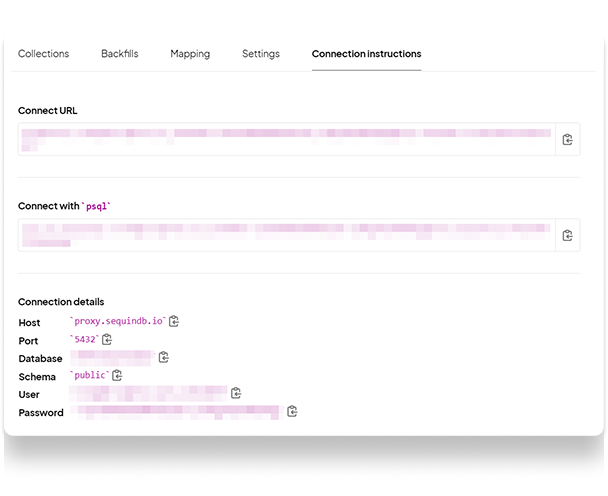 **Step 4:** Click on *Create resource*.
Sequin's Postgres Proxy captures inserts, updates, and deletes and sends them to the upstream API. The Proxy can add a bit a of latency depending on the closeness between your database and the nearest Proxy. For the fastest reads, you can use a second "read-only" Retool resource that's pointed directly at your database. Then, you'd use both resources in your app, one for reads and the other for mutations. We only recommend doing this as an advanced optimization after your Retool app is built and in production.
### Using the Postgres resource in Retool[](#using-the-postgres-resource-in-retool "Direct link to Using the Postgres resource in Retool")
Now, Sequin is syncing your API data to Postgres. You've also connected Retool to Postgres via Sequin's Proxy. To query this data in your Retool app, go back to your Retool dashboard and select your app:
**Step 1:** Click on *Edit app*.
**Step 2:** Select *Code* from the left-hand menu and add a new *Resource query*.
**Step 3:** Give the resource query a name.
**Step 4:** Choose your Sequin resource from the resource dropdown. Enter a query to retrieve your data.
For instance, if you were using the [Bug Tracker](https://www.airtable.com/templates/bug-tracker/expOzMycWirMsUOTL) template on Airtable, you can use the following query to retrieve a list of bugs:
```sql theme={null}
select bugs_and_issues.id, bugs_and_issues.name, bugs_and_issues.description, bugs_and_issues.priority, bugs_and_issues.status, bugs_and_issues.created_time, tm1.name as reported_by, tm2.name as assigned_to from bugs_and_issues
join team_members as tm1 on created_by[1] = tm1.id
left join team_members as tm2 on assigned_to[1] = tm2.id;
```
## Writing back to the API[](#writing-back-to-the-api "Direct link to Writing back to the API")
With Sequin, you can also make [mutations](https://docs.sequin.io/writes) via your database as well. Inserts, updates, and deletes you make to Sequin-synced tables are first applied to the API. If they pass validation, they're committed to your database. To write your first mutation query, open the code sidebar from the left-hand menu on Retool and create a new resource query.
When creating a new resource query, you can use Retool's SQL mode or GUI mode. When using the SQL mode, you must write your own SQL query to perform mutations. Using the GUI mode, you can select the table you want to update, the action type, a primary key column (if applicable), and the array of records to update.
The example below uses Retool's GUI mode to run an update query when triggered by the user.
**Step 4:** Click on *Create resource*.
Sequin's Postgres Proxy captures inserts, updates, and deletes and sends them to the upstream API. The Proxy can add a bit a of latency depending on the closeness between your database and the nearest Proxy. For the fastest reads, you can use a second "read-only" Retool resource that's pointed directly at your database. Then, you'd use both resources in your app, one for reads and the other for mutations. We only recommend doing this as an advanced optimization after your Retool app is built and in production.
### Using the Postgres resource in Retool[](#using-the-postgres-resource-in-retool "Direct link to Using the Postgres resource in Retool")
Now, Sequin is syncing your API data to Postgres. You've also connected Retool to Postgres via Sequin's Proxy. To query this data in your Retool app, go back to your Retool dashboard and select your app:
**Step 1:** Click on *Edit app*.
**Step 2:** Select *Code* from the left-hand menu and add a new *Resource query*.
**Step 3:** Give the resource query a name.
**Step 4:** Choose your Sequin resource from the resource dropdown. Enter a query to retrieve your data.
For instance, if you were using the [Bug Tracker](https://www.airtable.com/templates/bug-tracker/expOzMycWirMsUOTL) template on Airtable, you can use the following query to retrieve a list of bugs:
```sql theme={null}
select bugs_and_issues.id, bugs_and_issues.name, bugs_and_issues.description, bugs_and_issues.priority, bugs_and_issues.status, bugs_and_issues.created_time, tm1.name as reported_by, tm2.name as assigned_to from bugs_and_issues
join team_members as tm1 on created_by[1] = tm1.id
left join team_members as tm2 on assigned_to[1] = tm2.id;
```
## Writing back to the API[](#writing-back-to-the-api "Direct link to Writing back to the API")
With Sequin, you can also make [mutations](https://docs.sequin.io/writes) via your database as well. Inserts, updates, and deletes you make to Sequin-synced tables are first applied to the API. If they pass validation, they're committed to your database. To write your first mutation query, open the code sidebar from the left-hand menu on Retool and create a new resource query.
When creating a new resource query, you can use Retool's SQL mode or GUI mode. When using the SQL mode, you must write your own SQL query to perform mutations. Using the GUI mode, you can select the table you want to update, the action type, a primary key column (if applicable), and the array of records to update.
The example below uses Retool's GUI mode to run an update query when triggered by the user.
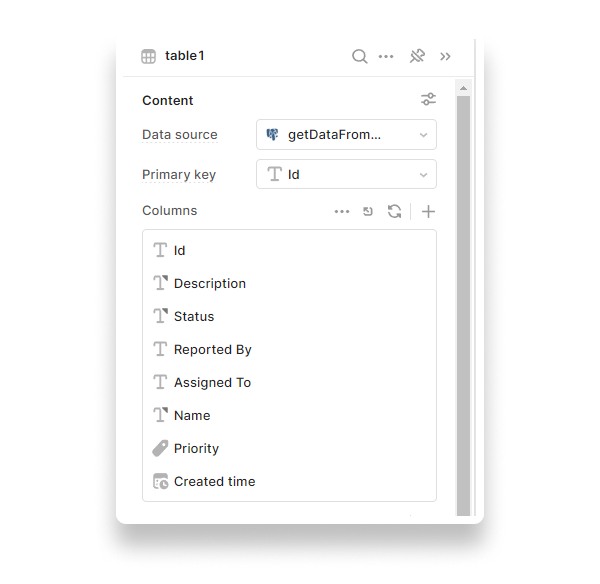
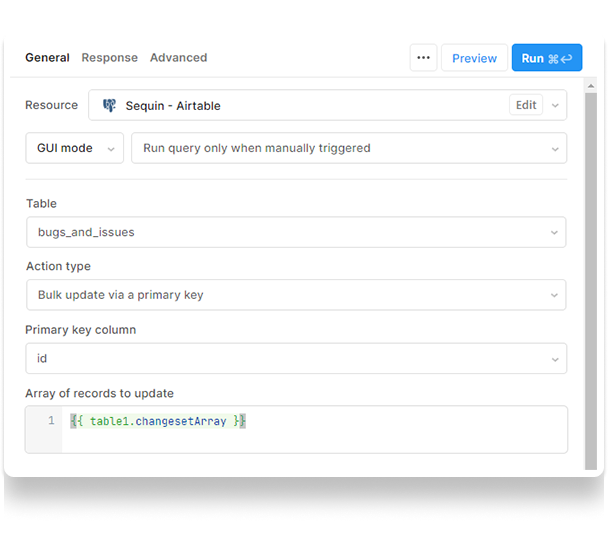 The `changesetArray` property of a table contains an array of row changesets. To use `changesetArray`, you must have a primary key for the data in your table and also configure it in Retool's table configuration GUI as shown below:
 When Sequin's Proxy encounters an error trying to apply your mutation in the upstream API, the Proxy returns a standard Postgres error. You can display this as a notification in Retool:
**Step 1:** Go to the *Response* tab of the resource query.
**Step 2:** Check the box *Show notification on failure*.
**Step 3:** Under the *Failure conditions* section, you can add a condition and the message you want to display. You have access to two query properties `data` and `error`. It is not necessary to provide a failure condition and message, but if you check the box to display a notification and leave them blank, no notification appears. Read the Retool docs on [Failure conditions](https://docs.retool.com/queries/guides/transformers#failure-conditions) to learn more.
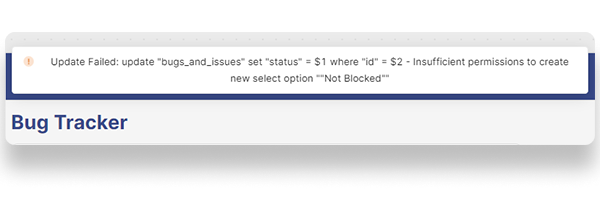
**Step 4:** Set the condition to `{{ error }}` and message to `Update Failed: {{ data.message }}`.
This checks for the `error` property and displays the `message` field from the `data` property:
When Sequin's Proxy encounters an error trying to apply your mutation in the upstream API, the Proxy returns a standard Postgres error. You can display this as a notification in Retool:
**Step 1:** Go to the *Response* tab of the resource query.
**Step 2:** Check the box *Show notification on failure*.
**Step 3:** Under the *Failure conditions* section, you can add a condition and the message you want to display. You have access to two query properties `data` and `error`. It is not necessary to provide a failure condition and message, but if you check the box to display a notification and leave them blank, no notification appears. Read the Retool docs on [Failure conditions](https://docs.retool.com/queries/guides/transformers#failure-conditions) to learn more.
**Step 4:** Set the condition to `{{ error }}` and message to `Update Failed: {{ data.message }}`.
This checks for the `error` property and displays the `message` field from the `data` property:
 ## Next steps[](#next-steps "Direct link to Next steps")
You can now use Retool to build on top of sources like Salesforce, Airtable, and HubSpot. If you have any questions, please [reach out to us](mailto:support@sequin.io).
## Next steps[](#next-steps "Direct link to Next steps")
You can now use Retool to build on top of sources like Salesforce, Airtable, and HubSpot. If you have any questions, please [reach out to us](mailto:support@sequin.io).