> ## Documentation Index
> Fetch the complete documentation index at: https://sequin.io/docs/llms.txt
> Use this file to discover all available pages before exploring further.
# Airplane
> With [Airplane](https://www.airplane.dev/), you can build high-quality internal tools fast. Airplane's development environment includes two fundamental building blocks: with [tasks](https://docs.airplane.dev/tasks/overview), you can execute SQL queries, query APIs, or run code. And with [views](https://docs.airplane.dev/views/overview), you can write React components that interact with tasks, like pulling data from SQL queries or using form data as input to a workflow.
You can use Sequin to build Airplane apps on top of APIs like Salesforce and HubSpot. Sequin will sync your API data to a Postgres database so you can write your integration in SQL. Changes you make to your database records will be applied to the API and your database at the same time.
While Airplane has connectors for some APIs, it's much faster to build with Airplane's Postgres adapter. You don't have to worry about rate limits and SQL is both familiar and expressive.
## Setup a Sequin sync[](#setup-a-sequin-sync "Direct link to Setup a Sequin sync")
Before you can use Sequin with Airplane, you'll need to create a sync. Sequin will guide you through authenticating, selecting the data you want to sync, and connecting to your database. Read our [getting started guide](https://docs.sequin.io/getting-started#create-a-sync) for step-by-step instructions.
## Create an Airplane resource[](#create-an-airplane-resource "Direct link to Create an Airplane resource")
A [resource](https://docs.airplane.dev/resources/overview) in Airplane is a connection to a database or API.
Sequin uses a [Postgres Proxy](https://docs.sequin.io/writes#configuration) to interface with your Sequin-synced tables. The Proxy lets Sequin capture inserts, updates, and deletes you make in your database and commit them to the API.
To add Sequin's Postgres Proxy as an Airplane resource, you can treat it as a regular Postgres resource and enter the connection details in the resource configuration:
**Step 1:** Go to your Airplane dashboard and click the databases icon labeled "Resources." Click the "+" icon in the environment where you want to create the resource.
**Step 2:** Select PostgreSQL.
**Step 3:** This opens up the "Create new resource" slide-out. Give the connection a name (like "salesforce-sequin") and paste the values for host, database name, database username, and database password from the *Connection instructions* tab of your Sequin dashboard.
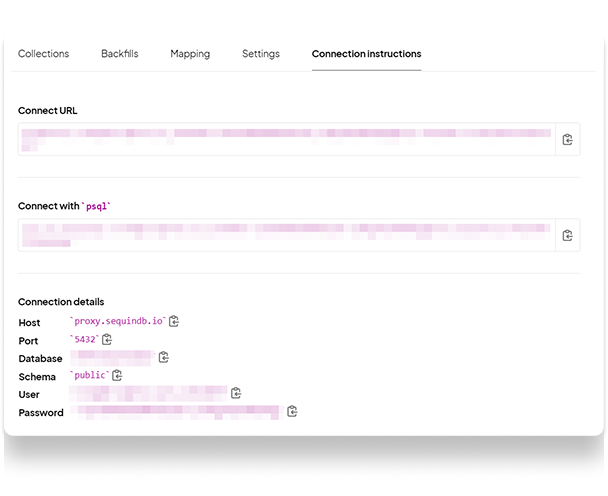 **Step 4:** Click "Test connection" to ensure it's working, then click "Save."
### Using the Postgres resource in Airplane[](#using-the-postgres-resource-in-airplane "Direct link to Using the Postgres resource in Airplane")
Now, Sequin is syncing your API data to Postgres. You've also connected Airplane to Postgres via Sequin's Proxy.
To query this data in your Airplane app, first **create a new task**:
**Step 1:** Open the "File browser" by clicking the computer icon on the left rail. Click the "+" button and select "Task."
**Step 2:** Select "SQL", give the task a name, and click "Create." This will create two files: the task definition (ending in `.task.yaml`) and the SQL query associated with the task (ending in `.sql`).
**Step 3:** Write your SQL query. For example, here's a Salesforce query that finds all the Salesforce Contacts belonging to a given account:
```sql theme={null}
-- in list_account_contacts.sql
select * from salesforce.contact
where account_id = :account_id
limit 100;
```
Note this query uses a parameter, `:account_id`. You can bind a task parameter to `:account_id` in the task definition:
```sql theme={null}
# in list_account_contacts.task.yaml
parameters:
- slug: account_id
name: Account ID
type: shorttext
required: true
sql:
queryArgs:
account_id: "{{params.account_id}}"
```
To run this task, you'll supply an `account_id` as the argument. As a test, you can run a task at any time by selecting it in the file browser (tasks have the lightning bolt icon).
Once your tasks are ready, you can create React components that interface with them. You can create a new view from scratch by clicking the "+" button in the file browser. Or you can start with one of Airplane's many templates.
For example, to populate Airplane's `Table` React component with the results of a task, you set the table's `task` property to the slug of the task:
```sql theme={null}
```
## Writing back to the API[](#writing-back-to-the-api "Direct link to Writing back to the API")
With Sequin, you can also make [mutations](https://docs.sequin.io/writes) via your database as well. Inserts, updates, and deletes you make to Sequin-synced tables are first applied to the API. If they pass validation, they're committed to your database.
To write your first mutation query, create another task.
You can compose an `insert` query by populating `values` with various input fields in your application. Assuming the task binds parameters such as `:first_name` and `:last_name`, here's what inserting to a Salesforce Contact table would look like:
```sql theme={null}
-- insert_contact.sql
insert into salesforce.contact (first_name, last_name, email)
values (:first_name, :last_name, :email);
```
Continuing this example, you can create a basic form using the `Form` component:
```sql theme={null}
// admin_dashboard.airplane.tsx
const Dashboard = () => {
// ...
return (
// ...
);
};
```
The form will invoke `mutate` when the user clicks "Submit." You can define your `mutate` function at the top of the component:
```sql theme={null}
// admin_dashboard.airplane.tsx
const Dashboard = () => {
const { id: formId, values } = useComponentState("contact_form");
const { mutate } = useTaskMutation({
// this is the slug of the task to run
slug: "create_contact",
// passing in all the values of the form to the task
params: { num_times: 1, ...values },
onSuccess: () => {
showNotification({ message: "Contact created", type: "success" });
},
});
// ...
};
```
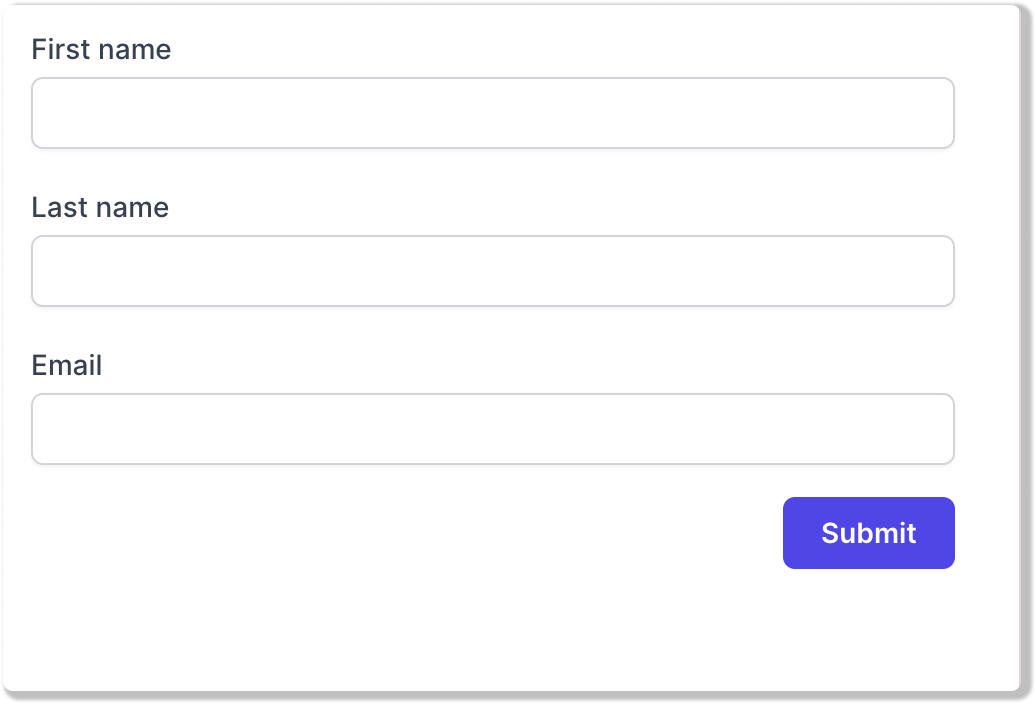
This will render a form with three inputs that your users can use to create contacts in Salesforce:
**Step 4:** Click "Test connection" to ensure it's working, then click "Save."
### Using the Postgres resource in Airplane[](#using-the-postgres-resource-in-airplane "Direct link to Using the Postgres resource in Airplane")
Now, Sequin is syncing your API data to Postgres. You've also connected Airplane to Postgres via Sequin's Proxy.
To query this data in your Airplane app, first **create a new task**:
**Step 1:** Open the "File browser" by clicking the computer icon on the left rail. Click the "+" button and select "Task."
**Step 2:** Select "SQL", give the task a name, and click "Create." This will create two files: the task definition (ending in `.task.yaml`) and the SQL query associated with the task (ending in `.sql`).
**Step 3:** Write your SQL query. For example, here's a Salesforce query that finds all the Salesforce Contacts belonging to a given account:
```sql theme={null}
-- in list_account_contacts.sql
select * from salesforce.contact
where account_id = :account_id
limit 100;
```
Note this query uses a parameter, `:account_id`. You can bind a task parameter to `:account_id` in the task definition:
```sql theme={null}
# in list_account_contacts.task.yaml
parameters:
- slug: account_id
name: Account ID
type: shorttext
required: true
sql:
queryArgs:
account_id: "{{params.account_id}}"
```
To run this task, you'll supply an `account_id` as the argument. As a test, you can run a task at any time by selecting it in the file browser (tasks have the lightning bolt icon).
Once your tasks are ready, you can create React components that interface with them. You can create a new view from scratch by clicking the "+" button in the file browser. Or you can start with one of Airplane's many templates.
For example, to populate Airplane's `Table` React component with the results of a task, you set the table's `task` property to the slug of the task:
```sql theme={null}
```
## Writing back to the API[](#writing-back-to-the-api "Direct link to Writing back to the API")
With Sequin, you can also make [mutations](https://docs.sequin.io/writes) via your database as well. Inserts, updates, and deletes you make to Sequin-synced tables are first applied to the API. If they pass validation, they're committed to your database.
To write your first mutation query, create another task.
You can compose an `insert` query by populating `values` with various input fields in your application. Assuming the task binds parameters such as `:first_name` and `:last_name`, here's what inserting to a Salesforce Contact table would look like:
```sql theme={null}
-- insert_contact.sql
insert into salesforce.contact (first_name, last_name, email)
values (:first_name, :last_name, :email);
```
Continuing this example, you can create a basic form using the `Form` component:
```sql theme={null}
// admin_dashboard.airplane.tsx
const Dashboard = () => {
// ...
return (
// ...
);
};
```
The form will invoke `mutate` when the user clicks "Submit." You can define your `mutate` function at the top of the component:
```sql theme={null}
// admin_dashboard.airplane.tsx
const Dashboard = () => {
const { id: formId, values } = useComponentState("contact_form");
const { mutate } = useTaskMutation({
// this is the slug of the task to run
slug: "create_contact",
// passing in all the values of the form to the task
params: { num_times: 1, ...values },
onSuccess: () => {
showNotification({ message: "Contact created", type: "success" });
},
});
// ...
};
```
This will render a form with three inputs that your users can use to create contacts in Salesforce:
 ### Errors[](#errors "Direct link to Errors")
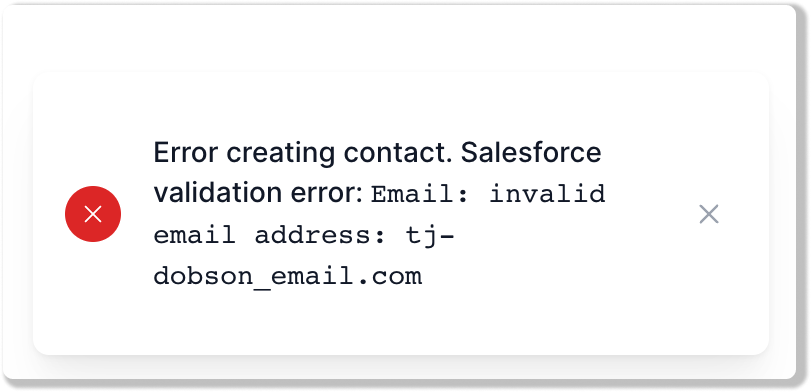
When Sequin's Proxy encounters an error trying to apply your mutation in the upstream API, the Proxy returns a standard Postgres error. You can setup your app to display this as an alert notification.
If you're using the `mutate` function, you can add an `onError` callback like this:
```sql theme={null}
const { mutate } = useTaskMutation({
// ...
onError: (out, error) => {
const msg =
### Errors[](#errors "Direct link to Errors")
When Sequin's Proxy encounters an error trying to apply your mutation in the upstream API, the Proxy returns a standard Postgres error. You can setup your app to display this as an alert notification.
If you're using the `mutate` function, you can add an `onError` callback like this:
```sql theme={null}
const { mutate } = useTaskMutation({
// ...
onError: (out, error) => {
const msg = Error creating contact: {JSON.stringify(error)}
showNotification({ message: msg, type: "error" });
}
})
```
Now, if a user attempts to perform an insert and it fails, they'll see the validation error that was returned by Salesforce:
 ## Next steps[](#next-steps "Direct link to Next steps")
You can now use Airplane to build on top of sources like Salesforce, Airtable, and HubSpot. If you have any questions, please [reach out to us](mailto:support@sequin.io).
## Next steps[](#next-steps "Direct link to Next steps")
You can now use Airplane to build on top of sources like Salesforce, Airtable, and HubSpot. If you have any questions, please [reach out to us](mailto:support@sequin.io).