> ## Documentation Index
> Fetch the complete documentation index at: https://sequin.io/docs/llms.txt
> Use this file to discover all available pages before exploring further.
# Getting started
> Stream API data to your app and database in just a few minutes.
## Overview[](#overview "Direct link to Overview")
This guide will show you how to:
* Create your first stream
* Create a sync to an API provider in the stream
* Create a consumer and read data from the stream
* Write data back to the API provider
Then, you'll see how to do all this programmatically using Sequin's Management API.
## Create a stream[](#create-a-stream "Direct link to Create a stream")
Streams are at the center of Sequin. The data from your syncs is stored in a stream. Your consumers read from a stream, keeping track of which messages you have processed and which still need to be delivered.
To get started, you'll need a Sequin account. If you don't have one, you can [sign up for free](https://console.sequin.io/signup). Once you're logged in, you'll be prompted to create your first [**stream**](/streams):
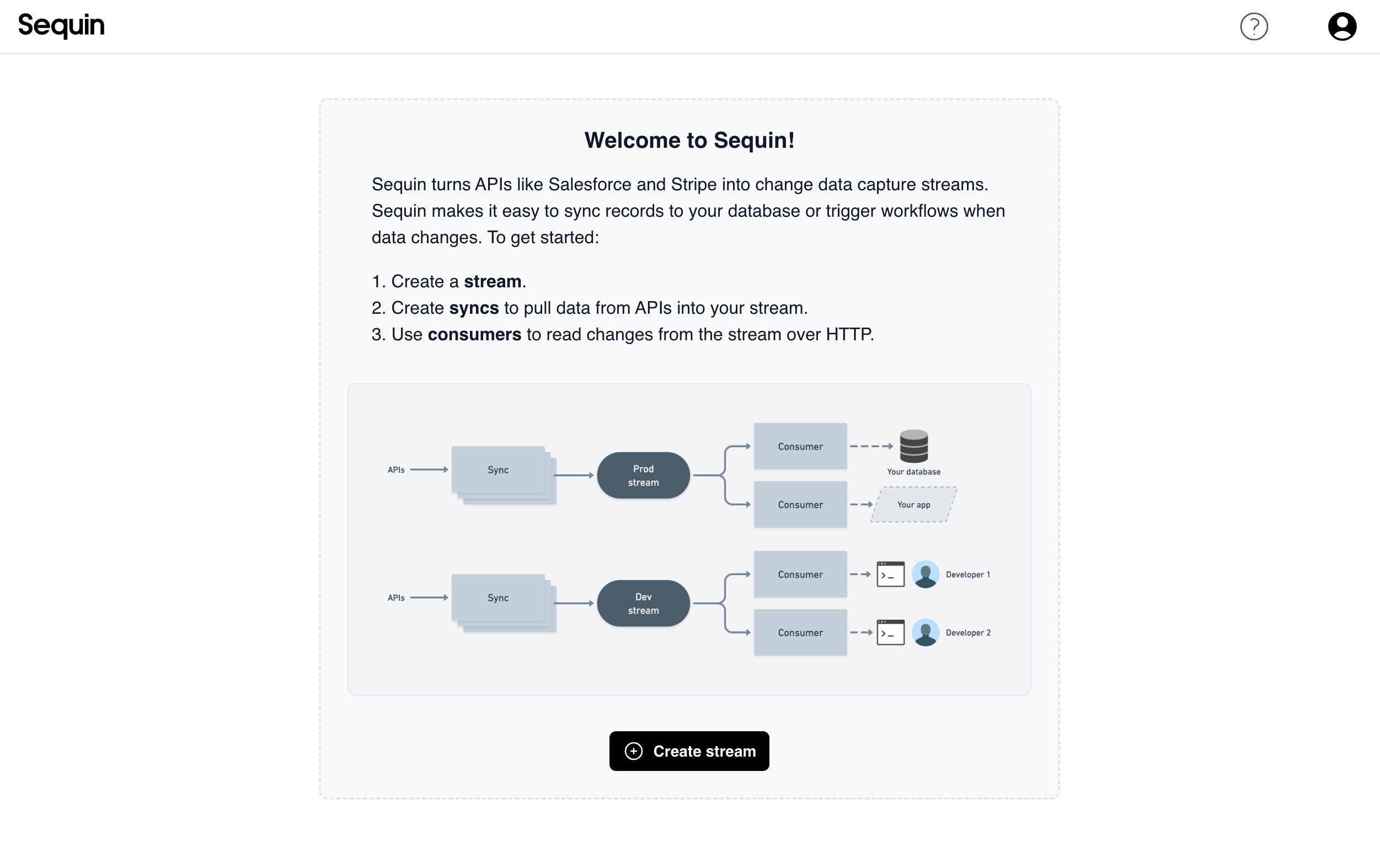 Click "Create stream" and enter a name. I chose `dev` as this stream is just for development, not yet production.
## Create a sync[](#create-a-sync "Direct link to Create a sync")
That's it! Our first stream is created. Now let's add a **sync**.
In Sequin, an instance of a connection to an API is called a **sync**. Sequin uses a **credential** (e.g. an access token) to access the API.
Here are some examples of things you can sync:
* A Salesforce account
* A HubSpot sandbox
* A Shopify store
* A Stripe account
You can connect to your API account or to your customers' API accounts. This guide will focus first on connecting to an account you own, but later we'll show you how to programmatically connect to your customers' accounts.
On our stream page, you will see no syncs yet and a prompt to create one.
Click "Create stream" and enter a name. I chose `dev` as this stream is just for development, not yet production.
## Create a sync[](#create-a-sync "Direct link to Create a sync")
That's it! Our first stream is created. Now let's add a **sync**.
In Sequin, an instance of a connection to an API is called a **sync**. Sequin uses a **credential** (e.g. an access token) to access the API.
Here are some examples of things you can sync:
* A Salesforce account
* A HubSpot sandbox
* A Shopify store
* A Stripe account
You can connect to your API account or to your customers' API accounts. This guide will focus first on connecting to an account you own, but later we'll show you how to programmatically connect to your customers' accounts.
On our stream page, you will see no syncs yet and a prompt to create one.
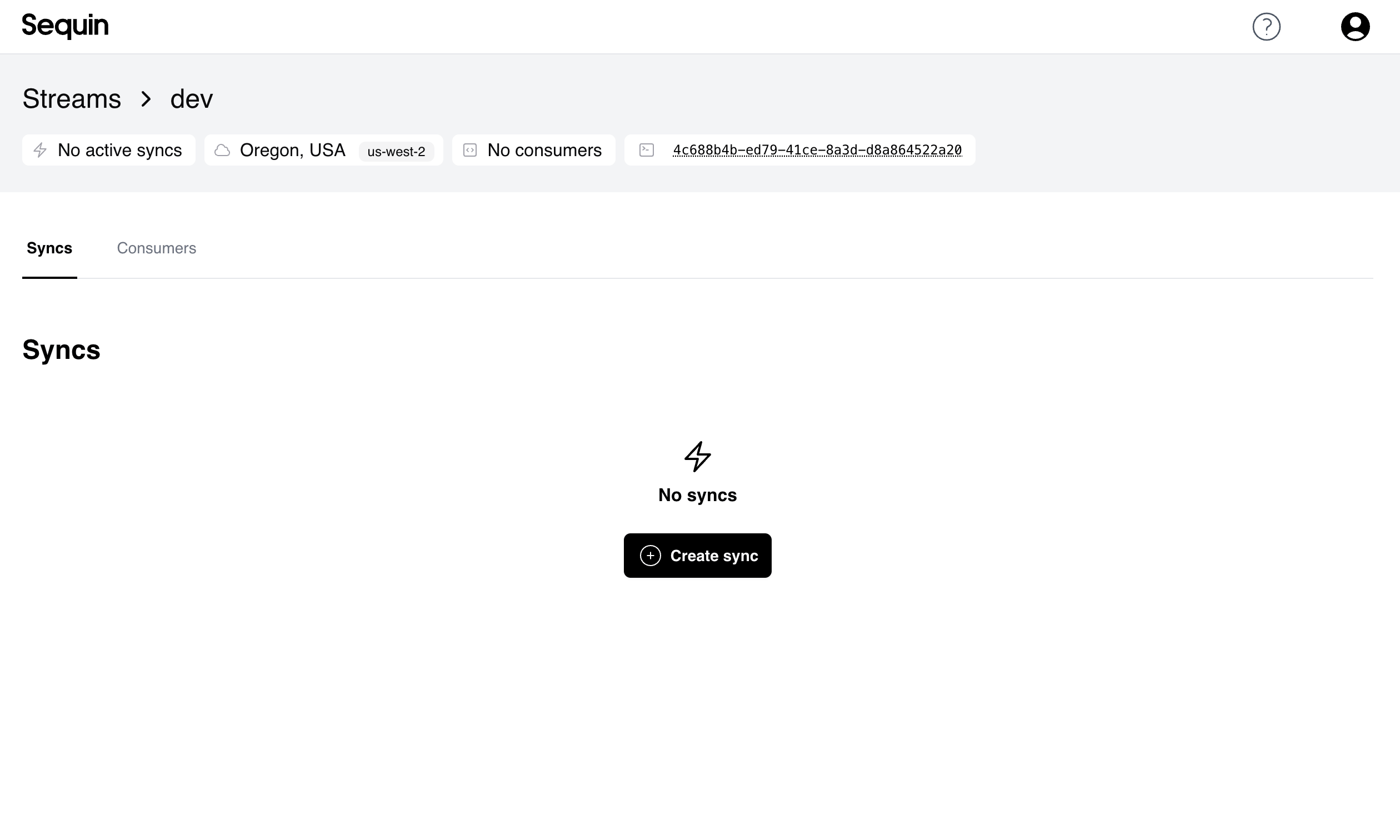 Click "Create sync".
Our first option is which provider to connect to. I chose HubSpot, but feel free to choose any provider that you have a login or an API key for.
Click "Create sync".
Our first option is which provider to connect to. I chose HubSpot, but feel free to choose any provider that you have a login or an API key for.
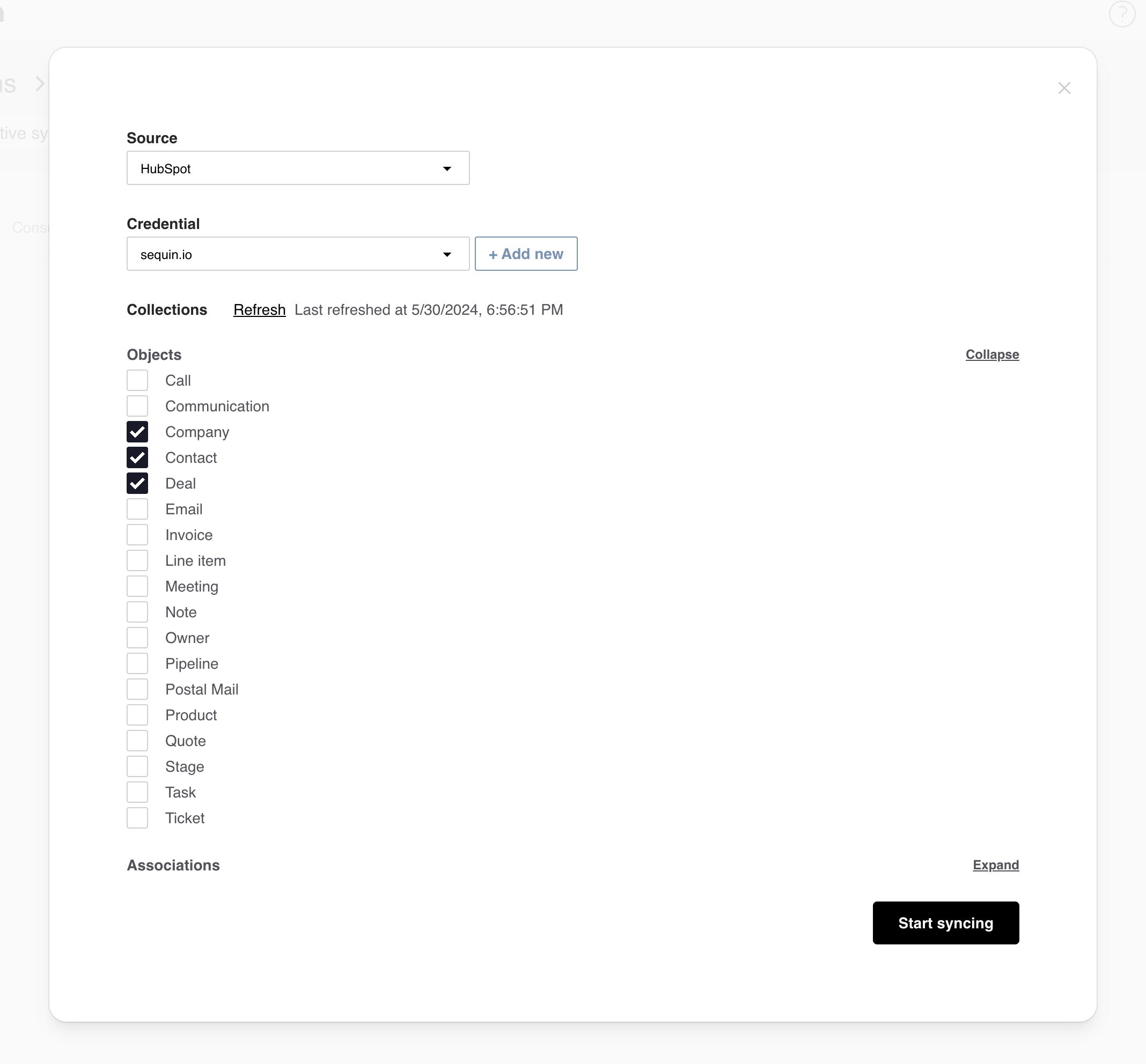
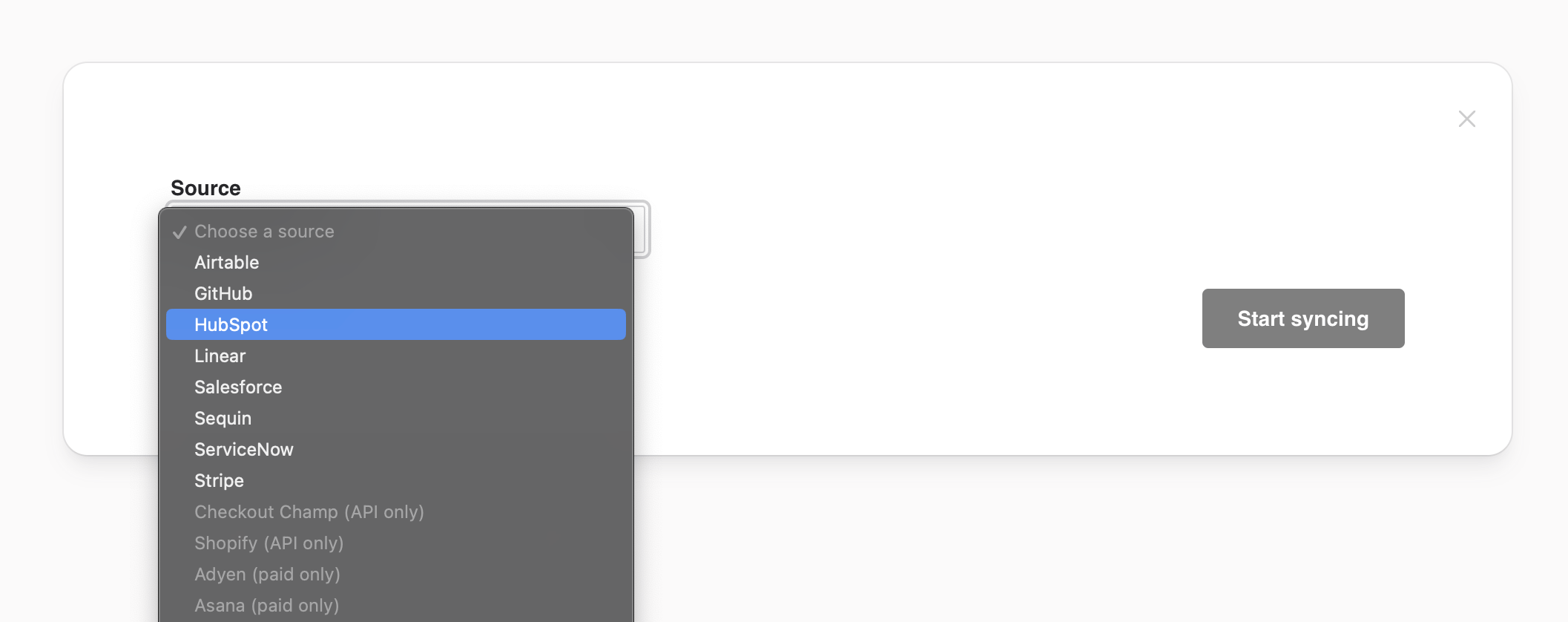 Once selected, you are prompted to create to connect to HubSpot. This will authorize Sequin to access your HubSpot account through a **credential**:
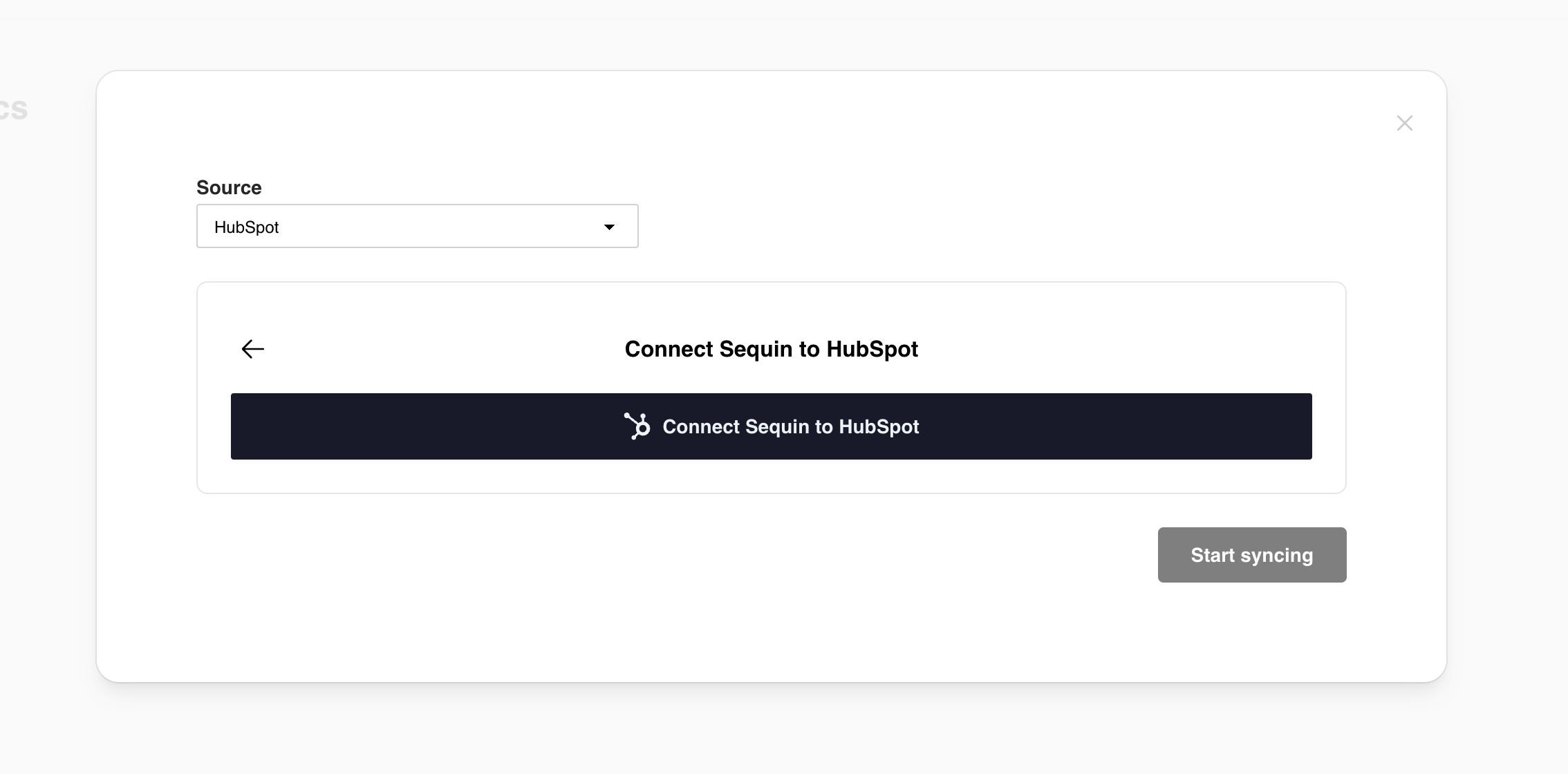 In the "Credential" section, click **+ Add New** then **Connect Sequin to HubSpot**. Follow the prompts in HubSpot to authorize Sequin.
Under "Collections," select the data you want to sync. A **collection** is a type of API object, like a Salesforce Contact or a Shopify Order.
Click **Start syncing**.
In the "Credential" section, click **+ Add New** then **Connect Sequin to HubSpot**. Follow the prompts in HubSpot to authorize Sequin.
Under "Collections," select the data you want to sync. A **collection** is a type of API object, like a Salesforce Contact or a Shopify Order.
Click **Start syncing**.
 ## Introspect[](#introspect "Direct link to Introspect your data")
After starting your sync, introspect the shape of objects flowing from the API. Click the "Records" tab to see the list of records Sequin has extracted so far:
## Introspect[](#introspect "Direct link to Introspect your data")
After starting your sync, introspect the shape of objects flowing from the API. Click the "Records" tab to see the list of records Sequin has extracted so far:
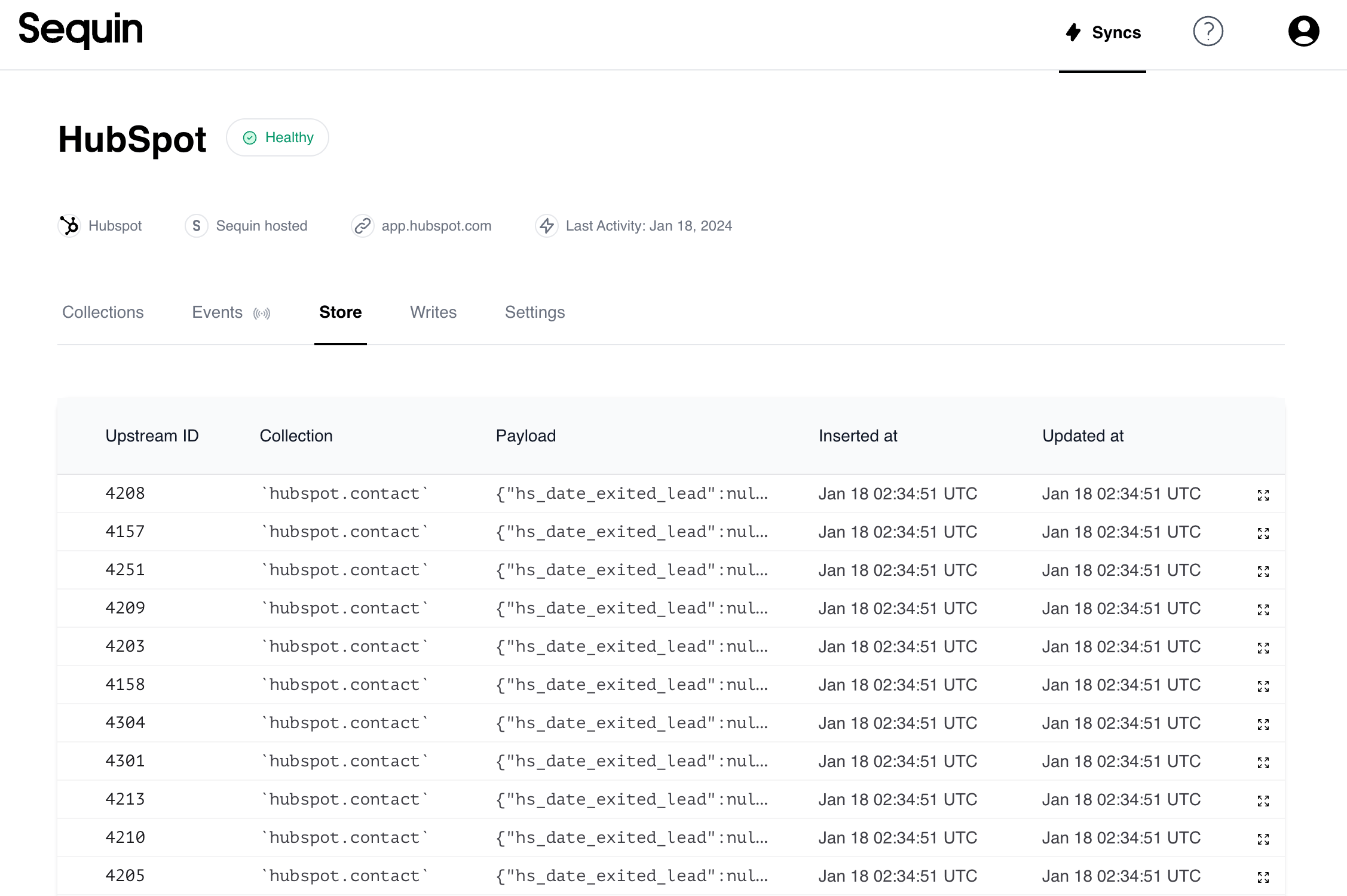 You can click on any record to see an expanded view. You can make changes to records in the API and see the corresponding records update in real-time!
## Create a consumer to read data[](#read-data "Direct link to Read data")
Now that you are syncing data to your stream, let's add add a [consumer](/streams/consume/overview) to read data into your application.
Sequin’s Consume API is an HTTP interface for processing all your API data. It provides the same capabilities as modern messaging systems, like Kafka or NATS. You can process data in parallel, at high-throughput, and with strong guarantees about message delivery.
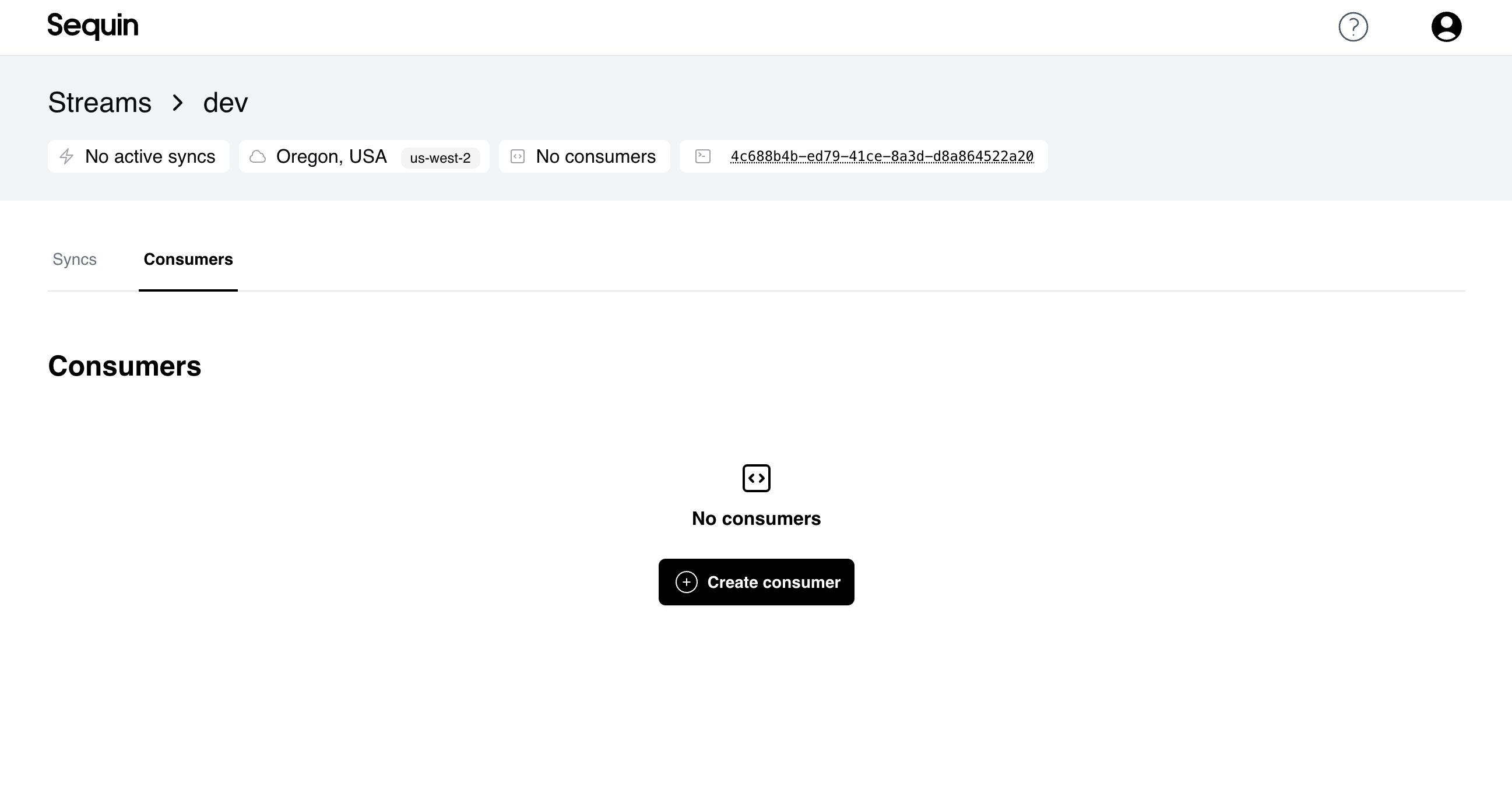
Navigate to your `dev` stream page and click the **Consumers** tab. Click **Create consumer**:
You can click on any record to see an expanded view. You can make changes to records in the API and see the corresponding records update in real-time!
## Create a consumer to read data[](#read-data "Direct link to Read data")
Now that you are syncing data to your stream, let's add add a [consumer](/streams/consume/overview) to read data into your application.
Sequin’s Consume API is an HTTP interface for processing all your API data. It provides the same capabilities as modern messaging systems, like Kafka or NATS. You can process data in parallel, at high-throughput, and with strong guarantees about message delivery.
Navigate to your `dev` stream page and click the **Consumers** tab. Click **Create consumer**:
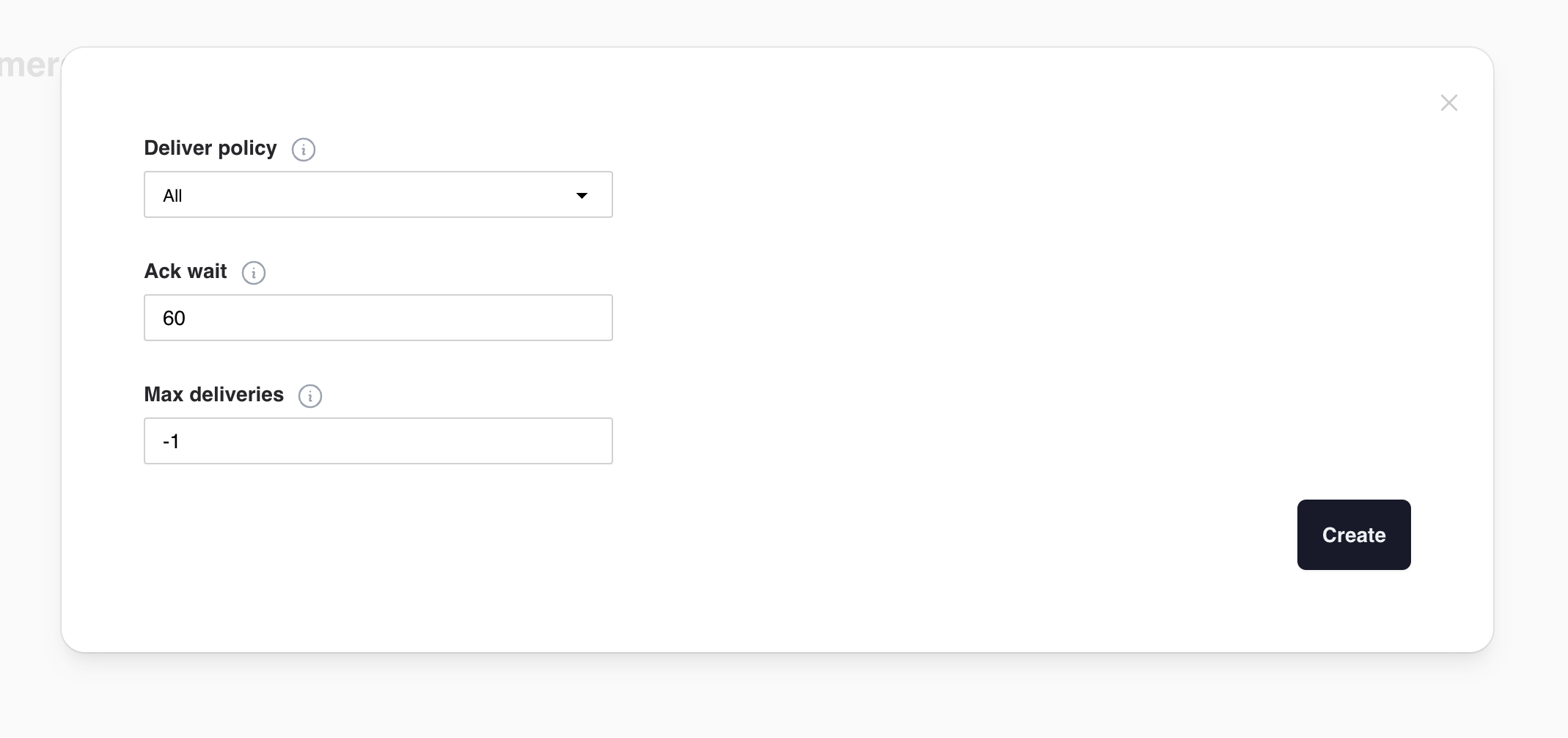
 There are a few configuration options available when creating a consumer:
Where in the stream the consumer starts.
* `all` (default): the consumer will start from the beginning of the stream.
* `new`: the consumer will start from the most recent message.
How long to wait for a message to be acknowledged, in seconds. Defaults to 60 seconds.
If a worker doesn't acknowledge a message within this time, the message will be redelivered (i.e. reappear for other workers to process).
Maximum number of times a message can be redelivered to workers. For example, if a message causes your workers to crash, it will be redelivered up to `max_deliver` times before being discarded.
Defaults to `-1`, which means there is no maximum.
For now, the defaults will work. To learn more about configuring your consumer, see the [consume docs](/management-api/consumers/create).
There are a few configuration options available when creating a consumer:
Where in the stream the consumer starts.
* `all` (default): the consumer will start from the beginning of the stream.
* `new`: the consumer will start from the most recent message.
How long to wait for a message to be acknowledged, in seconds. Defaults to 60 seconds.
If a worker doesn't acknowledge a message within this time, the message will be redelivered (i.e. reappear for other workers to process).
Maximum number of times a message can be redelivered to workers. For example, if a message causes your workers to crash, it will be redelivered up to `max_deliver` times before being discarded.
Defaults to `-1`, which means there is no maximum.
For now, the defaults will work. To learn more about configuring your consumer, see the [consume docs](/management-api/consumers/create).
 Click "Create". You now have a consumer and are ready to ingest data from your stream.
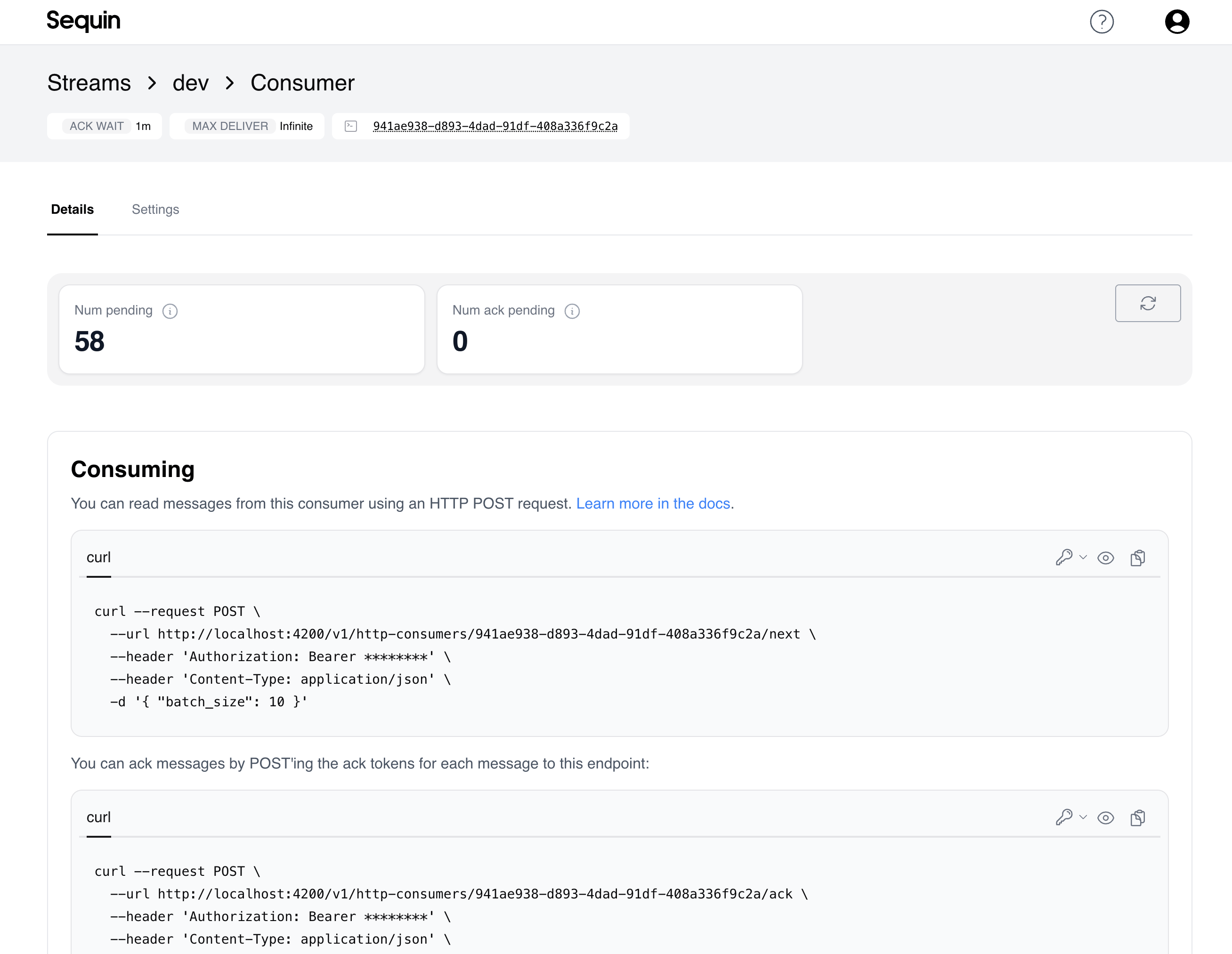 On the consumer page you can see:
* The configuration details you selected
* The number of messages that are pending delivery (`num pending`)
* The number of messages that are pending acknowledgement (`num ack pending`)
* Code snippets to consume records from this consumer
At this point, if you have not already, you should create an API Token. Navigate to Account -> [API Tokens](https://console.sequin.io/account/api-tokens) and click "Create API Token".
The code snippets automatically have your API Token so they are ready to run. Try copying the the `/next` snippet into your terminal to request your first batch of records!
```bash theme={null}
curl --request POST \
--url https://api.sequin.io/v1/http-consumers/{id}/next \
--header 'Authorization: Bearer {api token}' \
--header 'Content-Type: application/json' \
-d '{ "batch_size": 10 }'
```
```json 200 OK theme={null}
[
{
"ack_token": "NjA1",
"record": {
"sync_id": "my-sync-id",
"collection_id" : "stripe:subscription",
"upstream_id": "sub_tognkns00nj",
"updated_idx": 2745327037,
"upstream_created_at": "2024-11-10T18:38:00.070453Z",
"upstream_updated_at": "2024-11-10T18:38:00.070453Z",
"data": {
"id": "sub_tognkns00nj",
"object": "subscription",
"billing": "charge_automatically",
// …
}
}
},
// ...
]
```
Consumers are the best way to build a [sync to postgres](/how-to/upsert-to-postgres) or trigger workflows in your application when API data changes.
## Mutate data[](#mutate-data "Direct link to Mutate data")
On top of reading data, your integration probably needs to write data back to APIs as well. Sequin has a mutation API that allows you to create, update, and delete API records.
With the mutation API, mutations look the same regardless of the API. The `data` payload for API records matches the same shape used everywhere in Sequin.
Mutations are linked to syncs. When you create a mutation, you'll specify the sync ID of the sync you want to mutate. Sequin will route the mutation to the right place.
Here's an example of creating a Salesforce Contact:
```bash theme={null}
curl -X POST \
https://api.sequin.io/v1/mutations/run \
-H 'content-type: application/json' \
-d '{
"kind": "create",
"sync_id": "my-sync-id",
"collection_id": "salesforce:contact",
"data": [
{
"FirstName": "Paul",
"LastName": "Atreides",
"Email": "paul@arrakis.org"
}
]
}'
```
To learn more about mutations, check out our [docs on the mutation API](/mutations).
## Management API[](#management-api "Direct link to Management API")
Everything you can do in the Sequin console you can do via Sequin's [Management API](/management-api). This empowers you to write code that starts syncs, manages consumers, or anything else.
You'll use the Management API if you're programmatically connecting to your customers' API accounts. For example, if you're building a product that syncs data from your customers' Salesforce accounts to your app, you'll use the Management API to capture credentials and spin up syncs for each customer.
You can also use the Management API to integrate Sequin into your development and CI/CD workflows.
There's a lot you can do with the Management API. Here's a sampling of some common tasks:
### List syncs[](#list-syncs "Direct link to List syncs")
[List all the syncs](/management-api/syncs/list) in your account:
```shell theme={null}
curl --request GET \
--url https://api.sequin.io/v1/syncs \
--header 'Authorization: Bearer '
```
### Add a credential[](#todo "Direct link to Mutate data")
[Add a credential](/management-api/credentials/create) to your account:
```shell theme={null}
curl --request POST \
--url https://api.sequin.io/v1/credentials \
--header 'Content-Type: application/json' \
'Authorization: Bearer ' \
--data '{
"kind": "stripe_oauth2",
"access_token": "sk_live_7eC39HqLyjWDarjtT1zdp7dc",
"oauth_app_id": "8ff58ef0-d376-4ae8-b2e2-9f0206aa65b8",
"metadata": { "custom_property": 42 }
}'
```
### Create a sync[](#todo "Direct link to Mutate data")
[Create a new sync](/management-api/syncs/create) using the credential you just created:
```shell theme={null}
curl --request POST
--url https://api.sequin.io/v1/syncs
--header 'Content-Type: application/json' \
'Authorization: Bearer ' \
--data '{
"provider": "stripe",
"name": "Choam Corp - Stripe Production",
"collection_ids": ["stripe:customer", "stripe:invoice"],
"rate_limit": {
"allowed_requests": 100,
"interval": 60,
"max_concurrent_requests": 0
},
"credential_id": "8ff58ef0-d376-4ae8-b2e2-9f0206aa65b8",
"metadata": { "custom_property": 42 }
}'
```
## Questions and support[](#questions-and-support "Direct link to Questions and support")
If you have any issues or questions, don't hesitate to [reach out](mailto:support@sequin.io). We'd love to hear what you're building.
On the consumer page you can see:
* The configuration details you selected
* The number of messages that are pending delivery (`num pending`)
* The number of messages that are pending acknowledgement (`num ack pending`)
* Code snippets to consume records from this consumer
At this point, if you have not already, you should create an API Token. Navigate to Account -> [API Tokens](https://console.sequin.io/account/api-tokens) and click "Create API Token".
The code snippets automatically have your API Token so they are ready to run. Try copying the the `/next` snippet into your terminal to request your first batch of records!
```bash theme={null}
curl --request POST \
--url https://api.sequin.io/v1/http-consumers/{id}/next \
--header 'Authorization: Bearer {api token}' \
--header 'Content-Type: application/json' \
-d '{ "batch_size": 10 }'
```
```json 200 OK theme={null}
[
{
"ack_token": "NjA1",
"record": {
"sync_id": "my-sync-id",
"collection_id" : "stripe:subscription",
"upstream_id": "sub_tognkns00nj",
"updated_idx": 2745327037,
"upstream_created_at": "2024-11-10T18:38:00.070453Z",
"upstream_updated_at": "2024-11-10T18:38:00.070453Z",
"data": {
"id": "sub_tognkns00nj",
"object": "subscription",
"billing": "charge_automatically",
// …
}
}
},
// ...
]
```
Consumers are the best way to build a [sync to postgres](/how-to/upsert-to-postgres) or trigger workflows in your application when API data changes.
## Mutate data[](#mutate-data "Direct link to Mutate data")
On top of reading data, your integration probably needs to write data back to APIs as well. Sequin has a mutation API that allows you to create, update, and delete API records.
With the mutation API, mutations look the same regardless of the API. The `data` payload for API records matches the same shape used everywhere in Sequin.
Mutations are linked to syncs. When you create a mutation, you'll specify the sync ID of the sync you want to mutate. Sequin will route the mutation to the right place.
Here's an example of creating a Salesforce Contact:
```bash theme={null}
curl -X POST \
https://api.sequin.io/v1/mutations/run \
-H 'content-type: application/json' \
-d '{
"kind": "create",
"sync_id": "my-sync-id",
"collection_id": "salesforce:contact",
"data": [
{
"FirstName": "Paul",
"LastName": "Atreides",
"Email": "paul@arrakis.org"
}
]
}'
```
To learn more about mutations, check out our [docs on the mutation API](/mutations).
## Management API[](#management-api "Direct link to Management API")
Everything you can do in the Sequin console you can do via Sequin's [Management API](/management-api). This empowers you to write code that starts syncs, manages consumers, or anything else.
You'll use the Management API if you're programmatically connecting to your customers' API accounts. For example, if you're building a product that syncs data from your customers' Salesforce accounts to your app, you'll use the Management API to capture credentials and spin up syncs for each customer.
You can also use the Management API to integrate Sequin into your development and CI/CD workflows.
There's a lot you can do with the Management API. Here's a sampling of some common tasks:
### List syncs[](#list-syncs "Direct link to List syncs")
[List all the syncs](/management-api/syncs/list) in your account:
```shell theme={null}
curl --request GET \
--url https://api.sequin.io/v1/syncs \
--header 'Authorization: Bearer '
```
### Add a credential[](#todo "Direct link to Mutate data")
[Add a credential](/management-api/credentials/create) to your account:
```shell theme={null}
curl --request POST \
--url https://api.sequin.io/v1/credentials \
--header 'Content-Type: application/json' \
'Authorization: Bearer ' \
--data '{
"kind": "stripe_oauth2",
"access_token": "sk_live_7eC39HqLyjWDarjtT1zdp7dc",
"oauth_app_id": "8ff58ef0-d376-4ae8-b2e2-9f0206aa65b8",
"metadata": { "custom_property": 42 }
}'
```
### Create a sync[](#todo "Direct link to Mutate data")
[Create a new sync](/management-api/syncs/create) using the credential you just created:
```shell theme={null}
curl --request POST
--url https://api.sequin.io/v1/syncs
--header 'Content-Type: application/json' \
'Authorization: Bearer ' \
--data '{
"provider": "stripe",
"name": "Choam Corp - Stripe Production",
"collection_ids": ["stripe:customer", "stripe:invoice"],
"rate_limit": {
"allowed_requests": 100,
"interval": 60,
"max_concurrent_requests": 0
},
"credential_id": "8ff58ef0-d376-4ae8-b2e2-9f0206aa65b8",
"metadata": { "custom_property": 42 }
}'
```
## Questions and support[](#questions-and-support "Direct link to Questions and support")
If you have any issues or questions, don't hesitate to [reach out](mailto:support@sequin.io). We'd love to hear what you're building.